

Geo Chart lets you add interactive maps to your slide and customize how each area looks. You can choose a world or region map or drill into a specific country (and supported states), then style colors, borders, tooltips, and legend display. It is useful when you want to present location-based data clearly instead of using a regular chart.
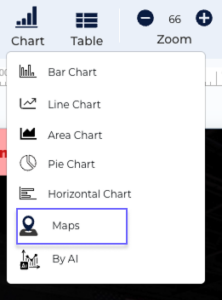
- Open Chart > Maps from the top ribbon.
Â
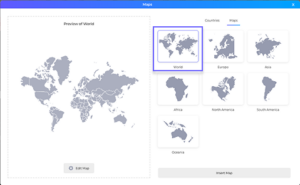
- Select a map from the Maps tab (World, Continent)
The preview updates automatically.
Â
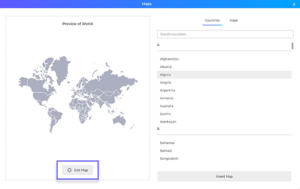
- To use a country map, open the Countries tab, search, and select a country or supported state.

- Click Edit Map to open editing options.
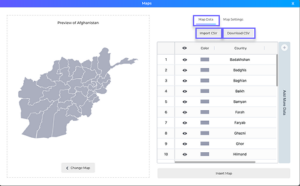
- In Map Data, update values manually or use:
- Import CSV — upload data
- Download CSV — export current data
- In Map Settings, customize:
Map Color
Borders
Map Controls
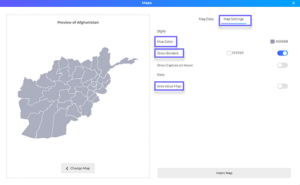
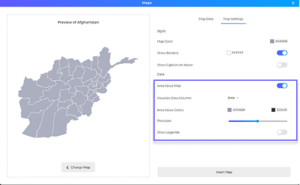
- Turn on Area Value Map to show color-based data values. You can also customize:
- Data column
- Color range
- Precision
- Legends
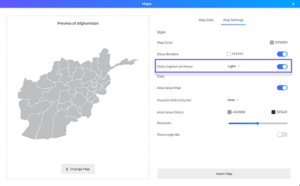
- Enable Show Caption on Hover to display information when hovering over map areas.
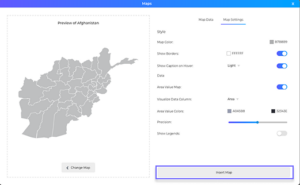
- Click:
- Insert Map → Add a new map
- Update Map → Save changes to an existing map
Â


Â
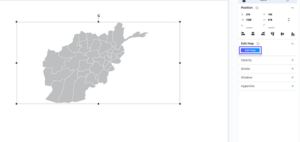
- To edit later, select the map and click Edit Map.
Â
Tips & Notes
- CSV uploads only support .csv files.
- Required CSV columns should not be changed.
- Turning off Area Value Map removes legends and data shading.
- Map data can be edited directly without importing CSV.
- Internet connection is required for Map insert/updates.
FAQ
The file must include the required columns exactly as expected (`countryId`, `visible`, `countryName`, `area`, `fillColor`). If any are missing or renamed, import is rejected.
Legends depend on Area Value Map. If the Area Value Map is turned off, legends are automatically disabled.
Yes. Use the **Map Data** tab to edit values directly in the table, and the preview updates based on your changes.
The `visible` column controls whether each area is shown. If a row is set to false, that area is hidden on the map.
 **Insert Map** adds a new map to your slide, while **Update Map** saves changes to a map that is already on the slide.