

Spaces
-
Spaces lets you create, manage, and share curated content collections with prospects and customers. Each Space includes a shareable link, engagement analytics, and access settings.
From the Spaces tab, you can view, filter, sort, share, and manage your Spaces.
When working with Partners, Spaces lets you control who can access, download, and share content using Space Access, Shared with, and the per-item download and share settings.
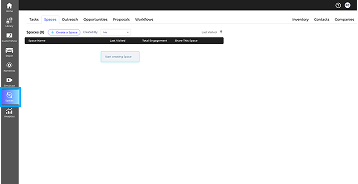
- 1. In the left sidebar, click Spaces.
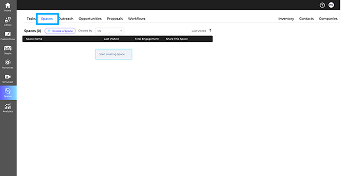
- 2. Select the Spaces tab at the top of the page.
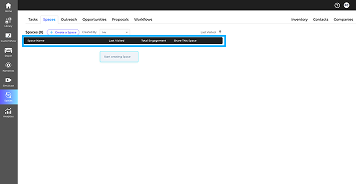
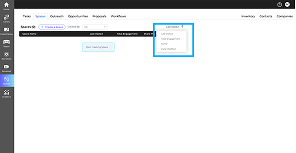
- 3. Review the Spaces list. You can see the Space Name, Last Visited, Total Engagement, and Share This Space options.
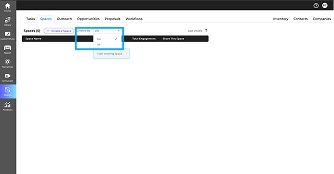
- 4. (Optional) Use Created By to filter Spaces. Select Me to see your Spaces or All if available to view Spaces across the organization.
- 5. (Optional) Use the Sort option to sort Spaces by Last Visited, Total Engagement, Name, or Date Modified. Use the arrow to change the sort order.
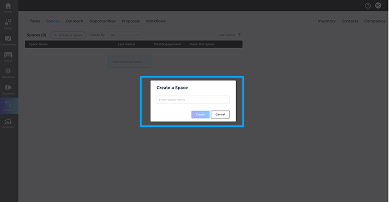
- 6. Click + Create a Space, enter a name, and click Create.
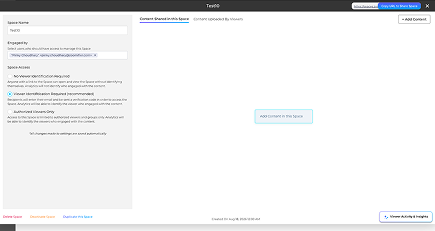
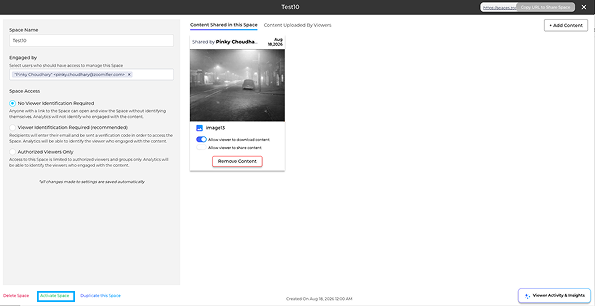
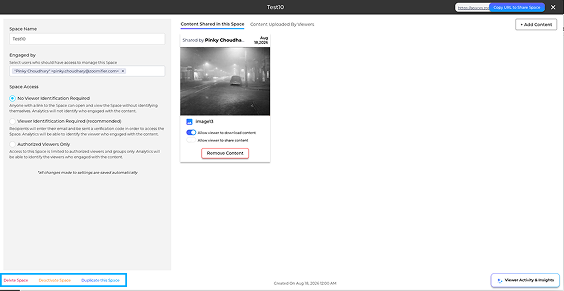
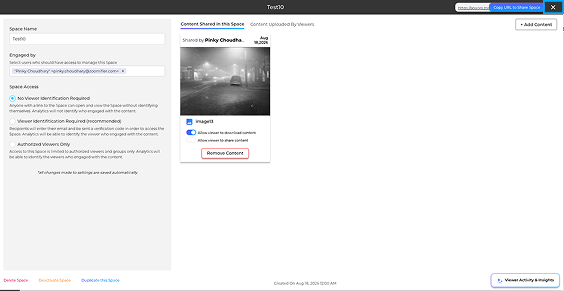
- 7. Click a Space to open its details. From here, you can manage its name, access, content, viewers, and activity.
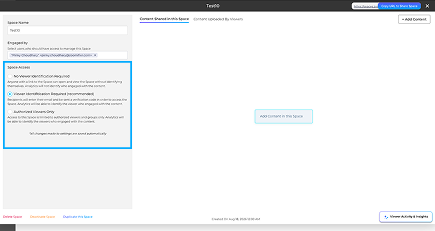
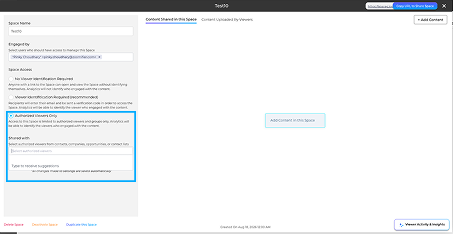
- 8. Under Space Access, choose how viewers can access the Space:
- 9. If you select Authorized Viewers Only, use Shared with to add the contacts, companies, opportunities, or lists that can access the Space.
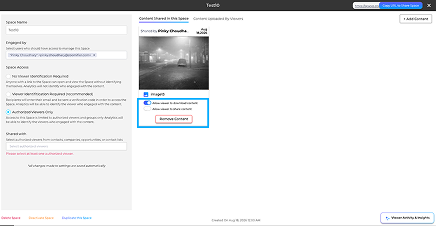
- 10. Add content to the Space from the Digital Library. For each item, you can enable:
- Changes are saved automatically.
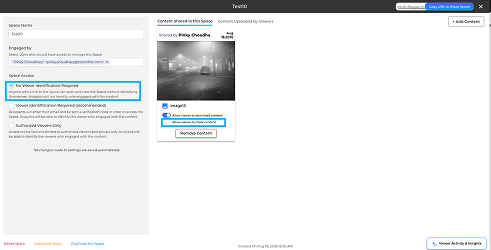
- 11.If No Viewer Identification Required is selected, Allow viewer to share content is automatically disabled. It becomes available again when viewer identification is required.
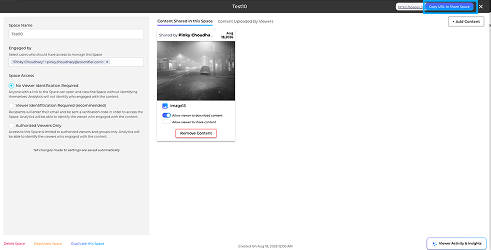
- 12. To share an active Space, click Copy URL in the Share This Space column. You can then paste the link into an email, chat, or CRM.
- 13. If a Space is deactivated, click Activate Space and confirm to make it shareable again.
- 14. From the Space details, you can Delete, Deactivate/Activate, or Duplicate the Space. You can also view its engagement analytics.
- 15. Click × to close the Space details and return to the Spaces list.
- Created By: Most users see Me. Managers may also see All to view Spaces created by others.
- Default sort: Spaces are sorted by Last Visited by default. Use the sort options to change the order.
- Engagement data: Last Visited and Total Engagement show - when there is no activity.
- Deactivated Spaces: A deactivated Space cannot be shared until you Activate Space again.
- Automatic saving: Changes to the Space settings are saved automatically. No Save button is required.
- Space Access: Use Viewer Identification Required for identifiable viewer activity. Use Authorized Viewers Only to restrict access to selected viewers.
- Download and Share: Use the Allow viewer to download content and Allow viewer to share content toggles to control access for each content item.
- Anonymous access: When No Viewer Identification Required is selected, the Allow viewer to share content option is disabled.
- No Spaces: If no Spaces are available, click + Create a Space to create one.
How to create a Space
How to access a Space
Step-by-Step Guide
- . No Viewer Identification Required – Anyone with the link can view it.
- . Viewer Identification Required – Viewers enter their email and verify with a code.
- . Authorized Viewers Only – Only selected viewers can access it.
- . Allow viewer to download content
- . Allow viewer to share content
Tips & Notes
FAQ
Why can't I see the All option under Created By?
All is available to managers and admin users. Other users only see Me.
What is the difference between Engaged by and Shared with?
Engaged by controls which internal users can manage the Space. Shared with controls which external viewers can access it when Authorized Viewers Only is selected.
Why can't I see Copy URL for a Space?
The Space may be deactivated. Click Activate Space to make it shareable again.
What do the access options mean?
No Viewer Identification Required – Anyone with the link can view the Space.
Viewer Identification Required – Viewers must verify their email.
Authorized Viewers Only – Only selected viewers can access the Space.
Viewer Identification Required – Viewers must verify their email.
Authorized Viewers Only – Only selected viewers can access the Space.
Can I recover a deleted Space?
No. Deleting a Space is permanent. Use Deactivate Space if you want to stop sharing it temporarily and activate it later.
Why is Allow viewer to share content disabled?
This option is disabled when No Viewer Identification Required is selected. Choose Viewer Identification Required or Authorized Viewers Only to enable it.
Why don't I see Allow viewer to download content for some items?
The download option is not available for presentations, webpages, or Journeys.