
- To send emails from Zoomifier using your Gmail email address, you’ll need to configure your email settings.
- This ensures that you can send communications directly from Zoomifier without switching between platforms.
- First, log into Zoomifier at app.zoomifier.com. Click on your profile icon and select ‘Email Settings.’
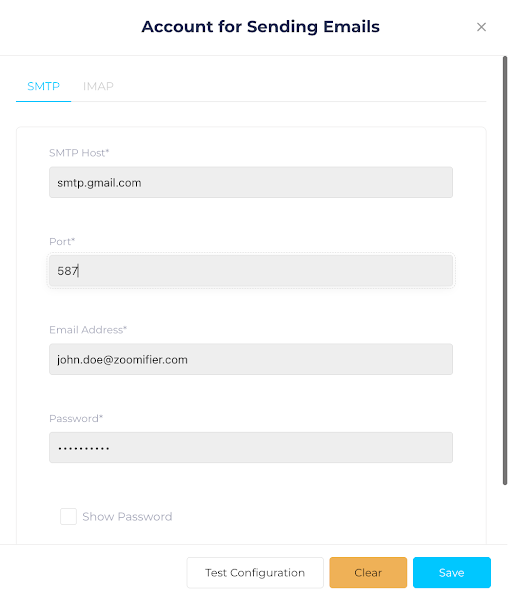
- In the SMTP settings, enter the following details:
- ● For SMTP Host, input smtp.gmail.com
- ● For Port, input 587
- ● For Email Address, input your Gmail address
- Next, you’ll need an app password. Here’s how to generate one:
- ● Open Gmail and click on your profile icon.
- ● Select ‘Manage Your Google Account’ > Go to ‘Security’ in the left panel.
- ● Scroll down to ‘2-Step Verification’ and log in again.
- Now, scroll down and select ‘App Passwords.’
- ● Enter ‘Zoomifier’ as the app name.
- ● Google will generate a one-time password—copy and save it securely.
- Back in Zoomifier, paste the app password into the ‘Password’ field.
- Now, click ‘Test Configuration’ to ensure everything is working.
- If the test is successful, click ‘Save’ and you’re done!
- You’re all set! Now, you can send emails seamlessly through Zoomifier.
- If you still need help, contact a Zoomifier team member.
- To send emails from Zoomifier using your Outlook email address, you’ll need to configure your email settings.
- This ensures that you can send communications directly from Zoomifier without switching between platforms.
- First, log into Zoomifier at app.zoomifier.com. Click on your profile icon and select ‘Email Settings.’
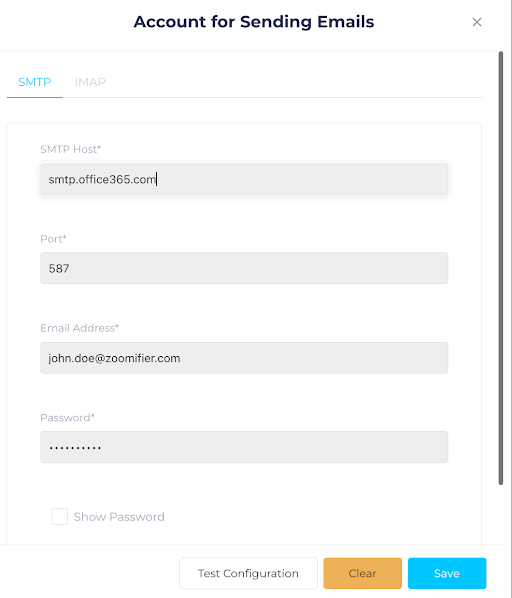
- In the SMTP settings, enter the following details:
- ● For SMTP Host, input smtp.office365.com
- ● For Port, input 587
- ● For Email Address, input your Outlook email address
- Next, you’ll need to enable SMTP authentication in your Outlook account. Here’s how to do it:
- ● Click on your profile icon, then select ‘View Account.’
- ● Go to ‘Security’ and select ‘Advanced security options.’
- ● Scroll down to ‘App Passwords’ and generate a new password for Zoomifier.
- ● Copy and save this password securely.
- Back in Zoomifier, paste the app password into the ‘Password’ field.
- Now, click ‘Test Configuration’ to ensure everything is working.
- If the test is successful, click ‘Save’ and you’re done!
- You’re all set! Now, you can send emails seamlessly through Zoomifier.
- If you still need help, contact a Zoomifier team member.