
- Okta SSO Configuration
- To proceed with configuring the login with SSO through Okta, you must:
- Have Administrative access to an Okta Org.
- Be an administrator for an account (tenant) in Zoomifier.
- SP initiated – [ https://app.zoomifier.com]
- IDP initiated – From Okta dashboard
- The organization’s Okta account needs to be linked with Zoomifier’s Okta Application. To do that, follow the instructions provided below:
- To_enable_this_feature:
- Step 1. Log in to your Organization’s Okta tenant
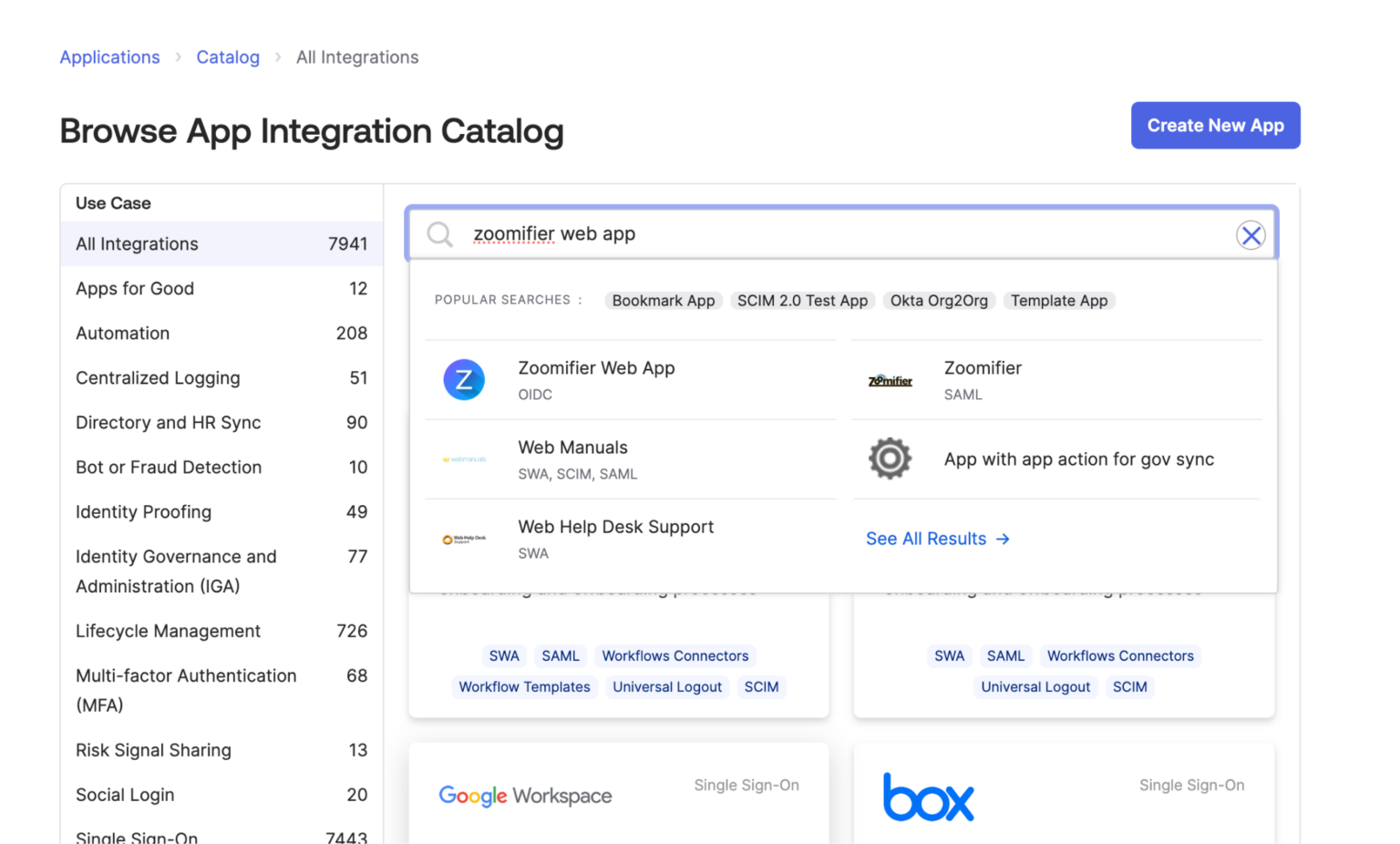
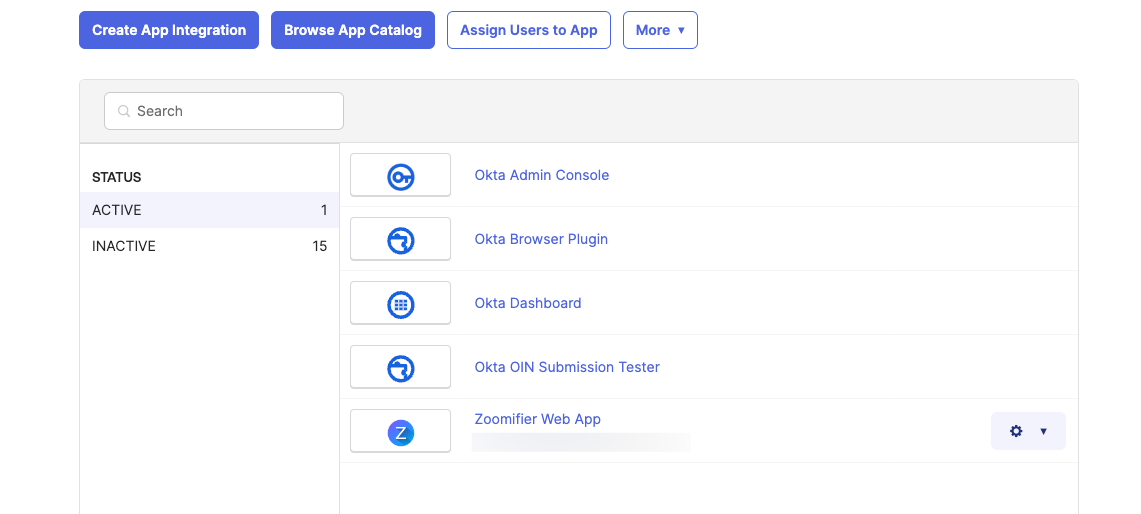
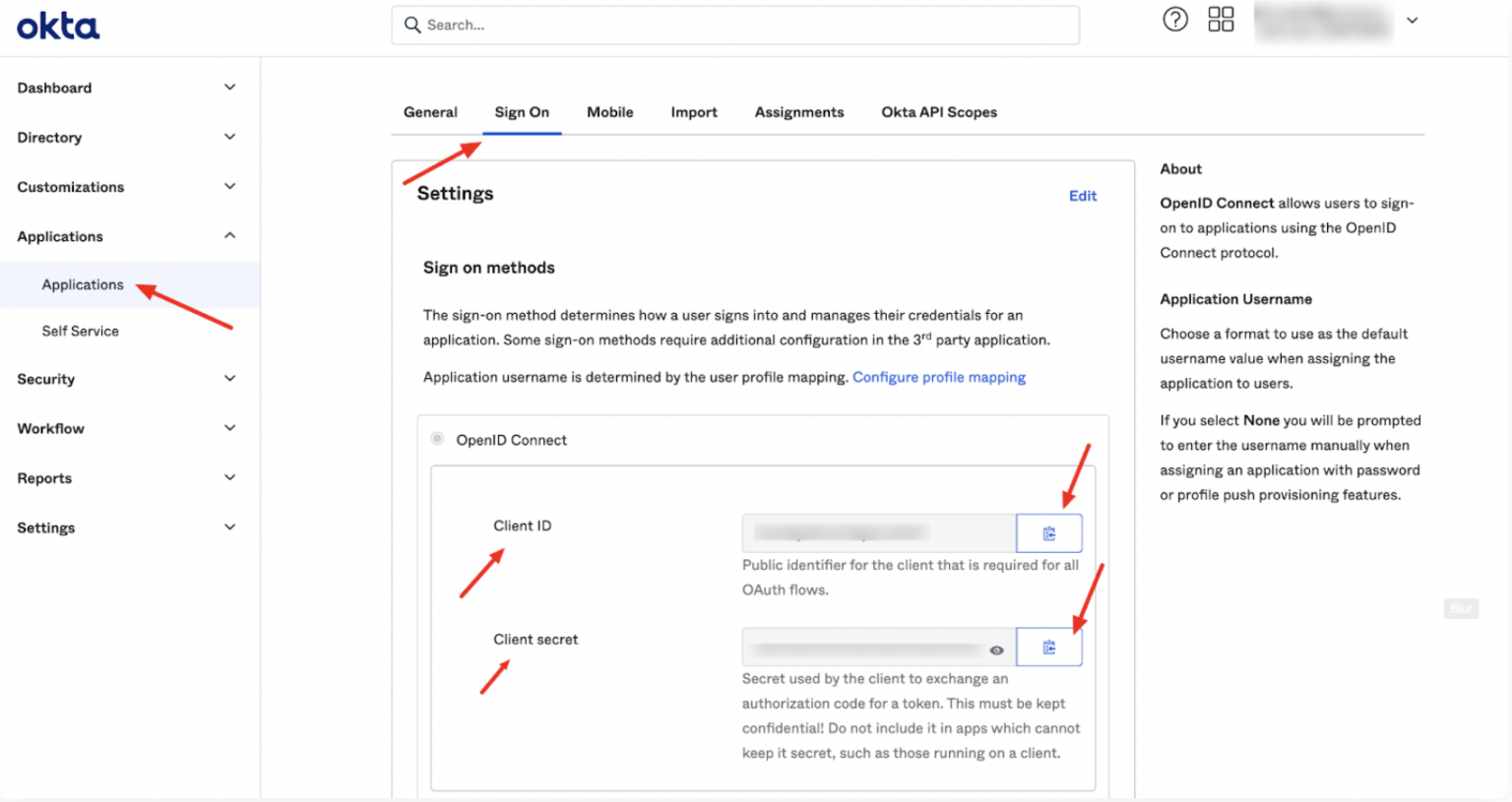
- Step 2. Navigate to Applications > Applications and click on Browse App Catalog
- Step 3.Search for Zoomifier Web App and select the Zoomifier Web App with the OIDC.
- Step 4.Click the Add Integration button
- Step 5.You will be navigated to the General Settings page -> Under General Settings:
- Application Label: Keep it as Zoomifier Web App
- Application Visibility: It is optional. You can skip it or set it based on your requirements. Click Done
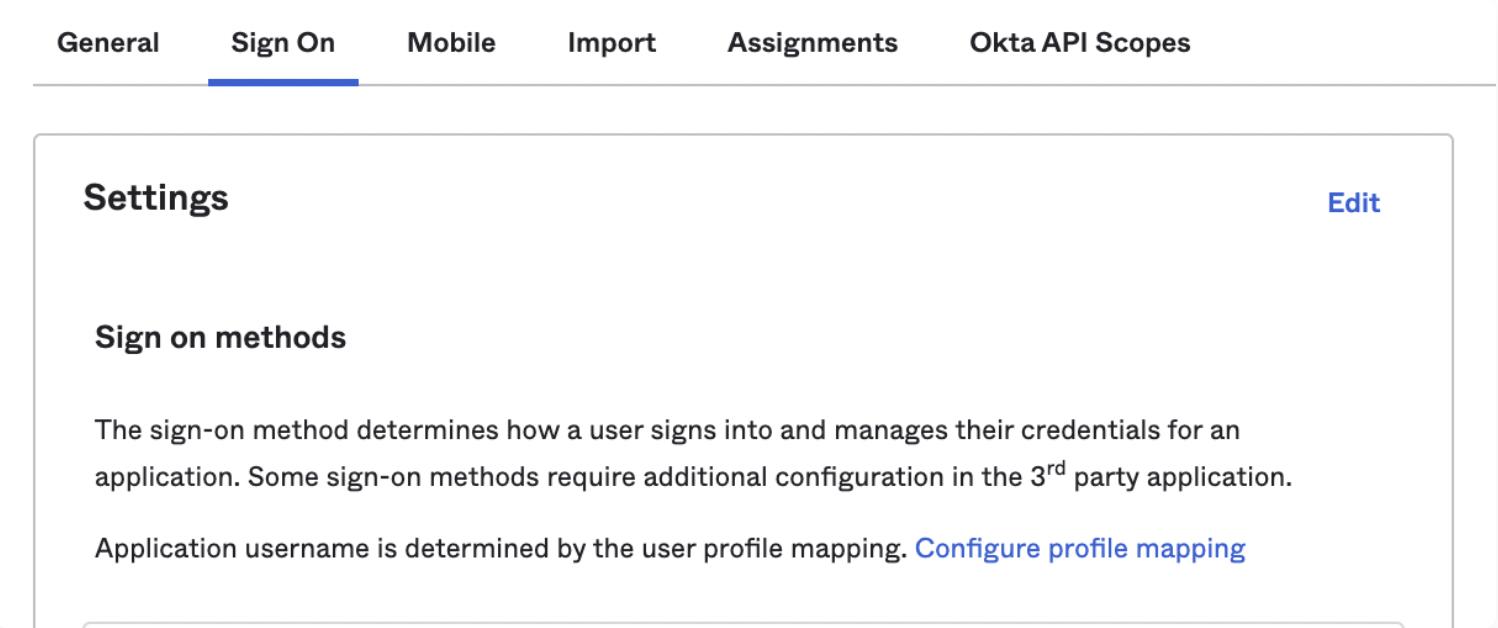
- Click the Sign On tab and click Edit
- Step 6.Please collect the following information and share it on the Zoomifier Platform.
- Client Id
- Okta Issuer (Host) URL
- From the Application > Sign On tab, copy the Client ID, Client Secret (Click the eye button to toggle the visibility)
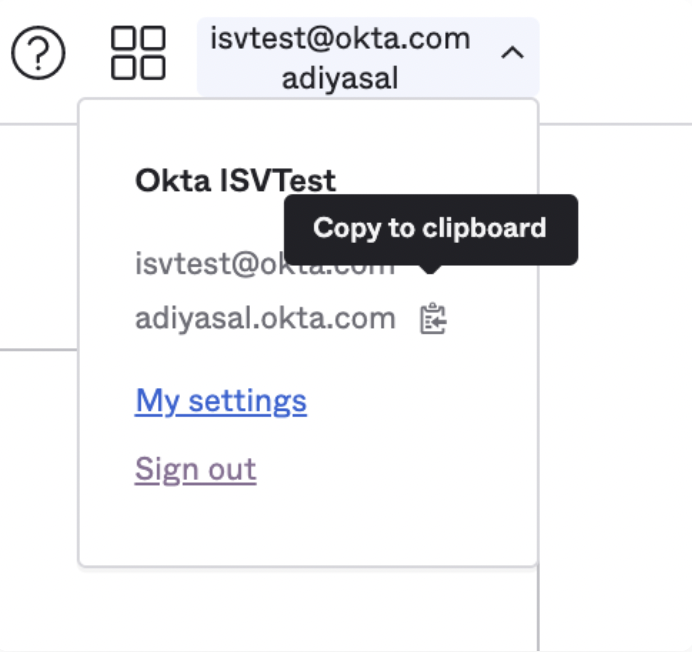
- From the top right dropdown, copy the Issuer (Host) URL
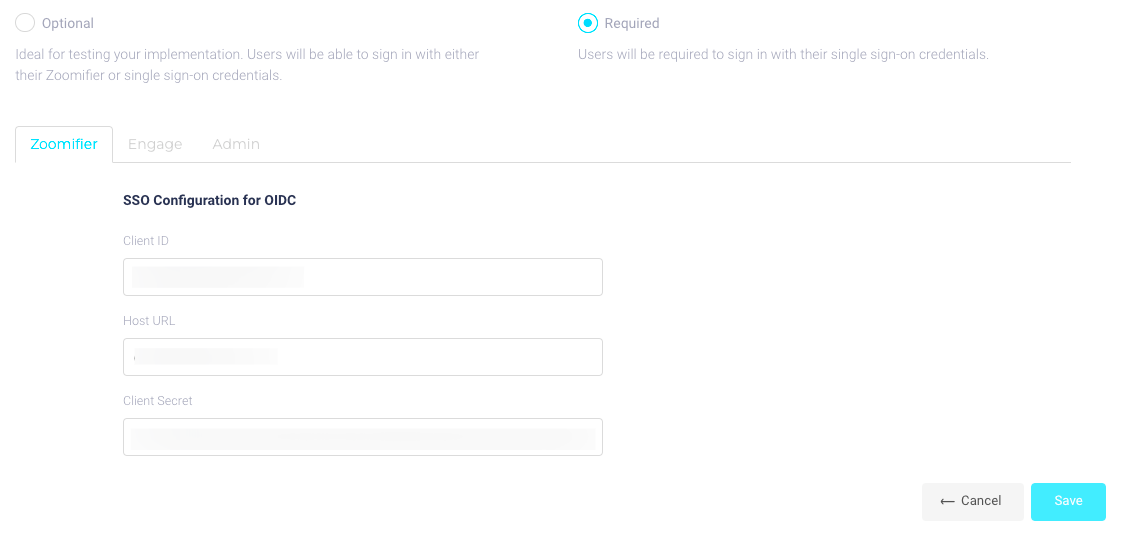
- Step 7.On Zoomifier Platform, navigate to Global Settings -> SSO to paste this information from Okta within Zoomifier in the respective fields on the settings page.
- Step 8.Steps to assign users to the Zoomifier Web Application within Okta.
- Optional. if you want to test your Okta configuration. Please keep it optional, until you have not tested the configuration.
- Required.Users will be required to sign in with their single sign-on credentials
- Step 9.Log out and test your Okta configuration.
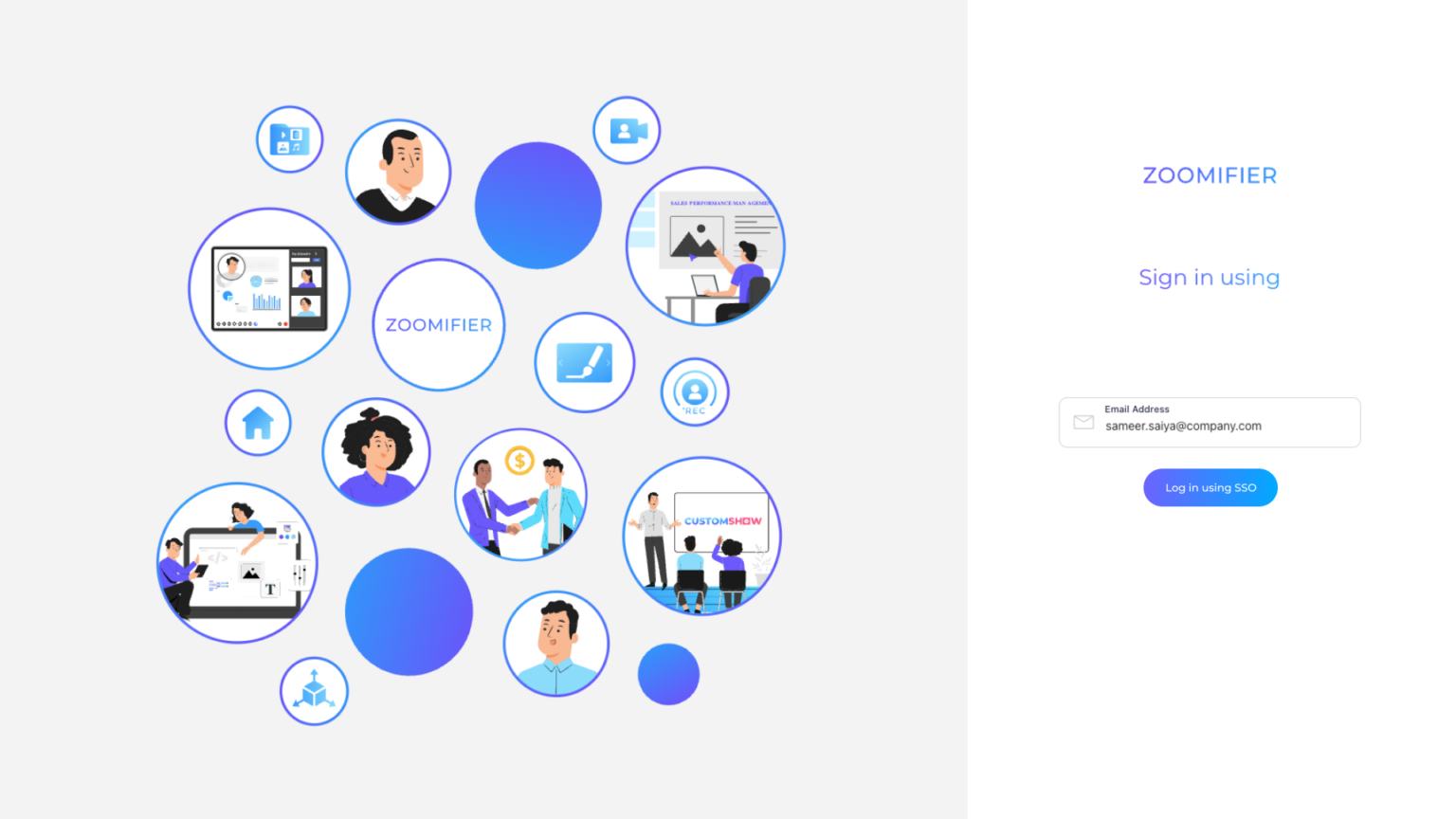
- 1. Okta login using Zoomifier login page
- a. Enter your email address. If your Okta configuration is set correctly, the “Login using Okta” button will appear.
- b. Click on it and follow the Okta login process.
- c. You will get logged in and will be redirected to the Zoomifier homepage.
- 2. Accessing Zoomifier Using Okta dashboard apps
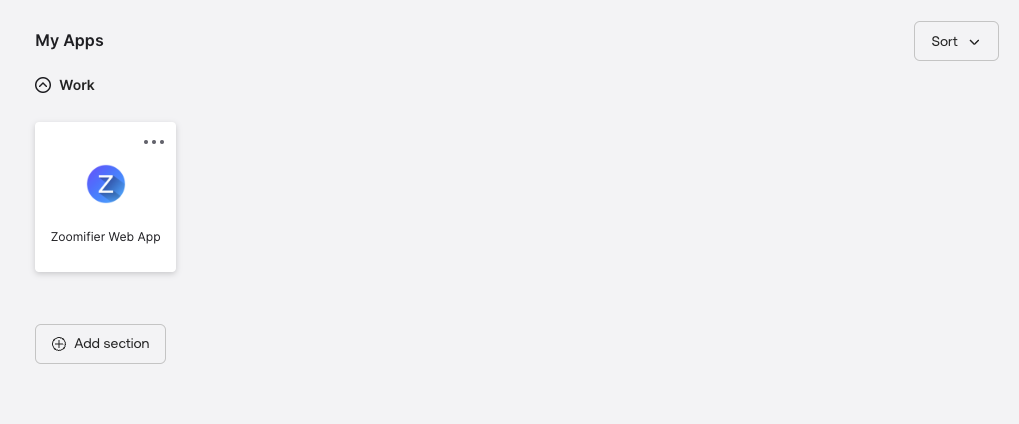
- a. If your Okta admin has granted you access to the Zoomifier app, you will see the Zoomifier app tile on your Okta dashboard.
- b. Click on it, and you will be logged in to the Zoomifier dashboard.
Prerequisites
Supported Features - Single Sign-On (OpenID Connect)
Okta Configuration Steps