

Video Optimization:
Optimizing videos before uploading them to CustomShow helps improve presentation performance and reduce loading times.
HandBrake is a free video compression tool that reduces file size while maintaining good quality. For the best playback experience, videos should be optimized and saved in MP4 format before uploading to CustomShow.
-
1.Download and install HandBrake if it is not already installed.
-
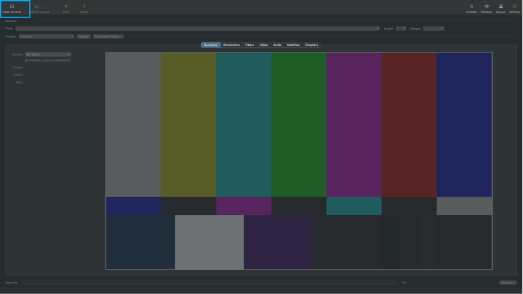
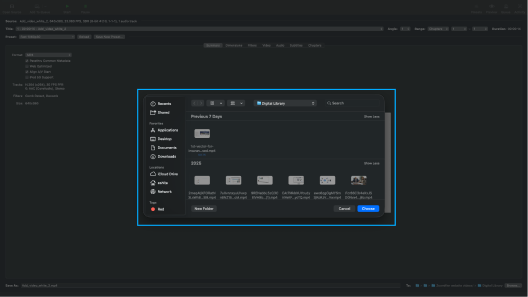
2. Open HandBrake and click Open Source to select your video file.
-
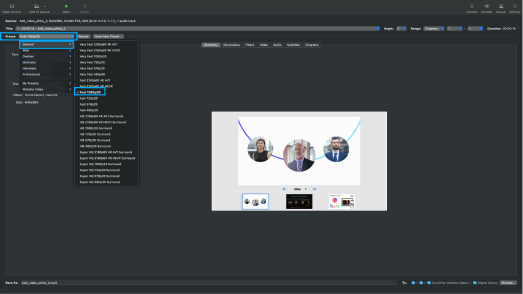
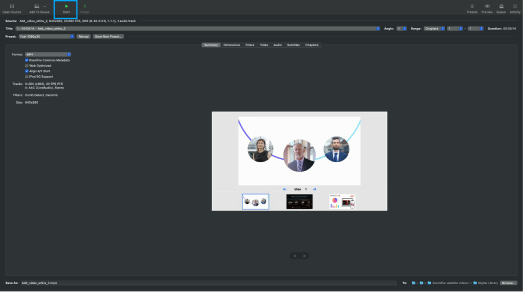
3. Select the Fast 1080p30 preset (or another web-friendly preset).
-
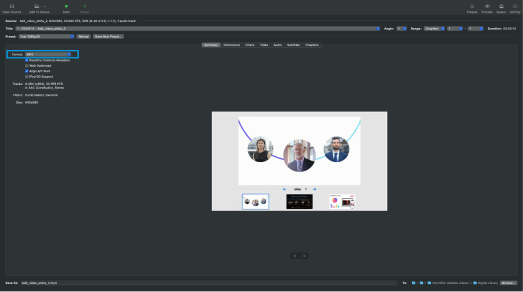
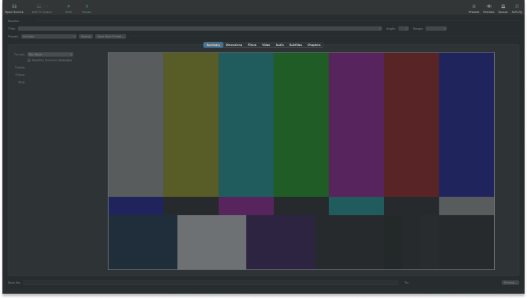
4. In theSummary tab, ensure the format is set to MP4.
-
5. Choose a destination location and file name.
-
6. Click Start Encode to begin optimizing the video.
-
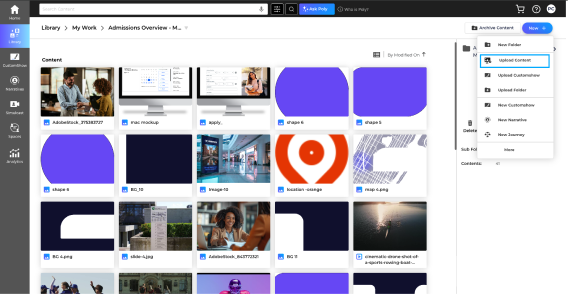
7. Upload the optimized MP4 file to CustomShow.
Optimize Your Video
Template:
Upload a New Edition
-
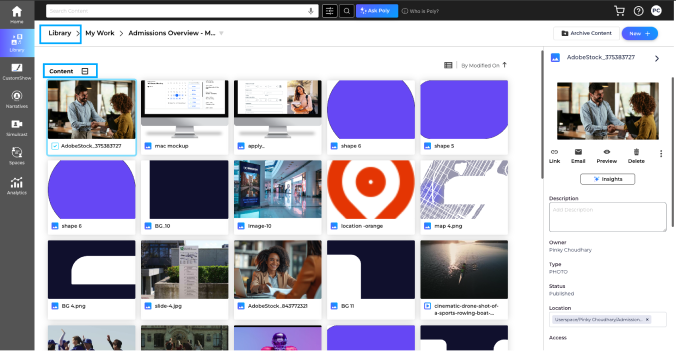
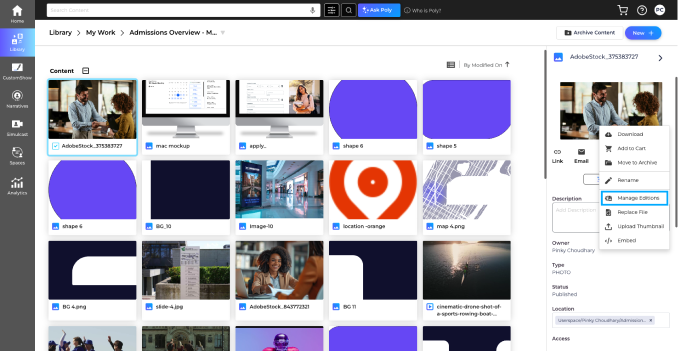
1.Open the Library and select the Content you want to update.
-
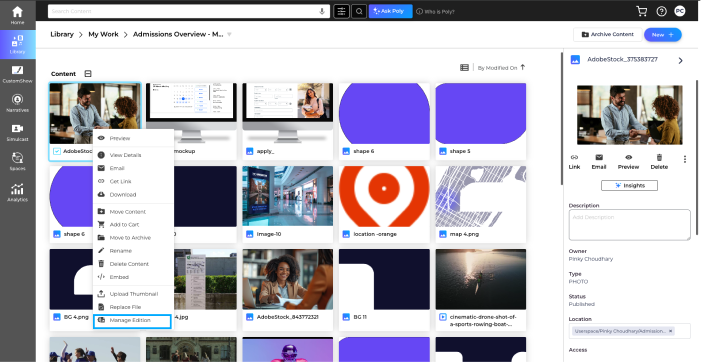
2. Click the three-dot menu (⋮) or right click to selectManage Editions.
-
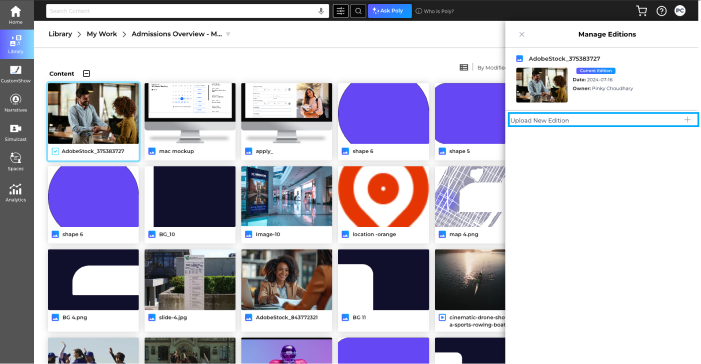
3. In the Manage Editions panel, click the + icon next to Upload New Edition.
-
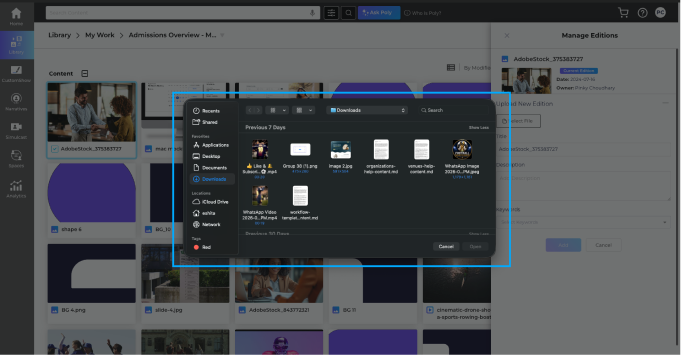
4. Select the optimized content file from your computer and upload it.
-
5. The new file becomes the Current Edition and automatically updates everywhere that content is being used.
If the video is already being used in CustomShow, upload it as a new edition to automatically
Tips & Notes
- Uploading a new edition keeps the same content item while updating it with the latest optimized file. This helps ensure all presentations use the updated version automatically.