 CustomShow Help & Resources

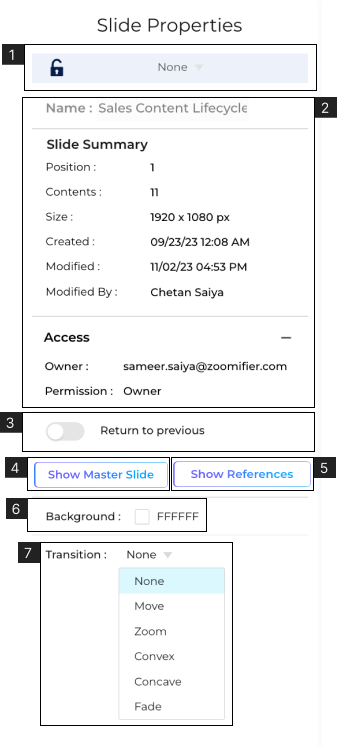
- To view the Slide Properties, click on an empty area of the slide or outside the slide area.
- 1. With Locking you can lock all the whole slide. Learn more about Locking.
- 2. Slide Meta data that has all the details about the slide.
- 3. Toggle for ‘Return to Previous’, when turned ‘ON’ if there’s media on the slide and it finishes playing, the slide will go back to where it came from. This is a form of ‘Navigation’.
- 4. The “Show Master Slide” function shows the Master Slide location for a Library Slide.
- – When the user clicks on the “Show Master Slide” button a pop-up will appear showing the location of the Master Slide for that Library Slide.
- – If the User has Edit Permission on the identified Master Slide then the user will see an “Open” button next to the Slide Location.
- – Learn More about Master Slide.
- 5. “Show References” is used for showing the references for a Library Slide within the Presentation Library and Public Folders.
- – When the user clicks on the “Show References” button a pop-up will be shown with the Slide Locations of all the Presentations in the Presentation Library and Public Folders only where this slide is being used.
- – Learn More about reference slide.At any instance when the user is viewing a Library Slide then in the Properties Panel on the Slide tab there will either be a “Show Master Slide” button if the Slide is a Referenced Slide or a “Show References” button if the slide is a Master slide.
- 6. Change the slide’s background color. Learn More about Fill.
- 7. Add transition to the slide.