

- Adding content to the cart
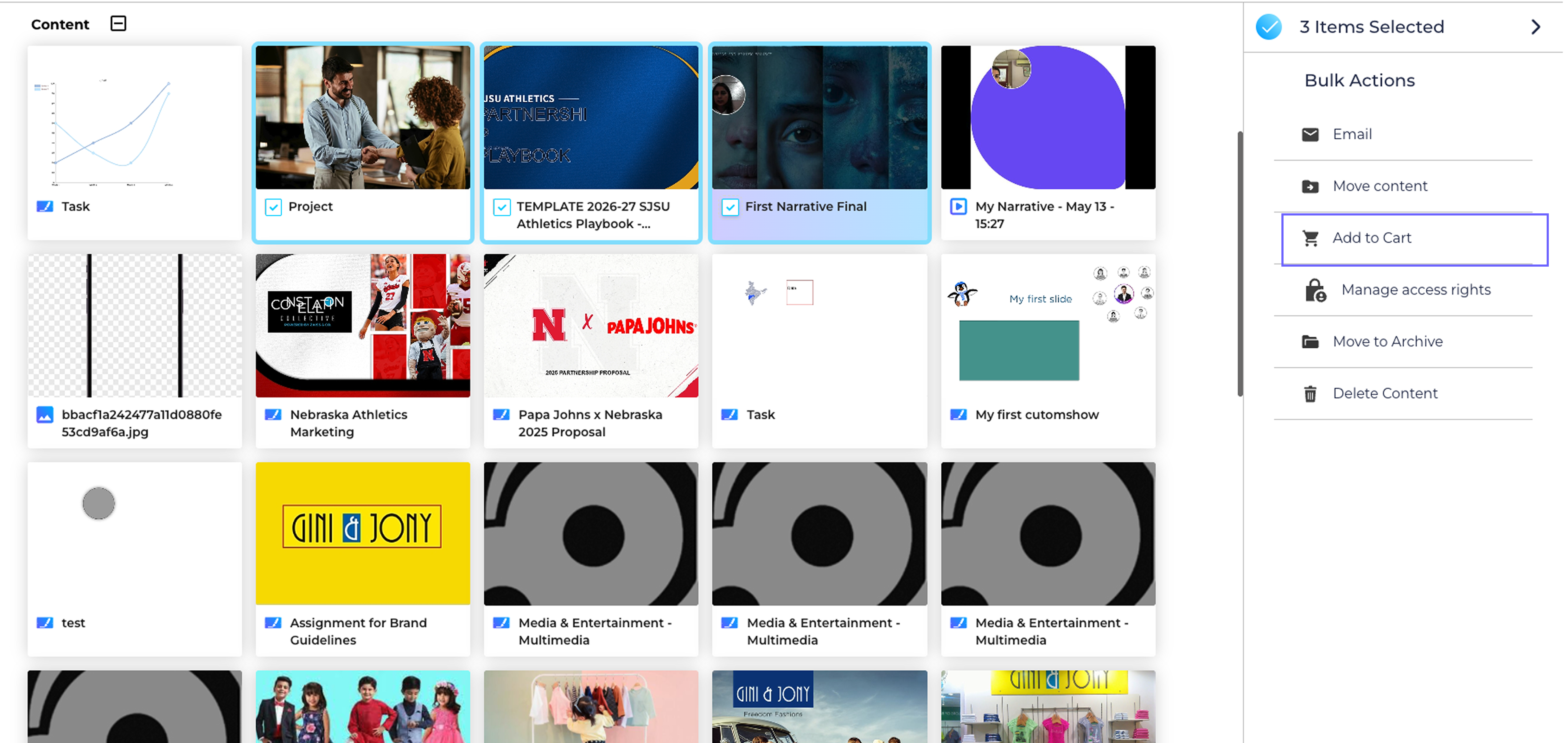
- 1.Select the content you want to add to the cart.
- 2.Click on Add to cart from the right pane.
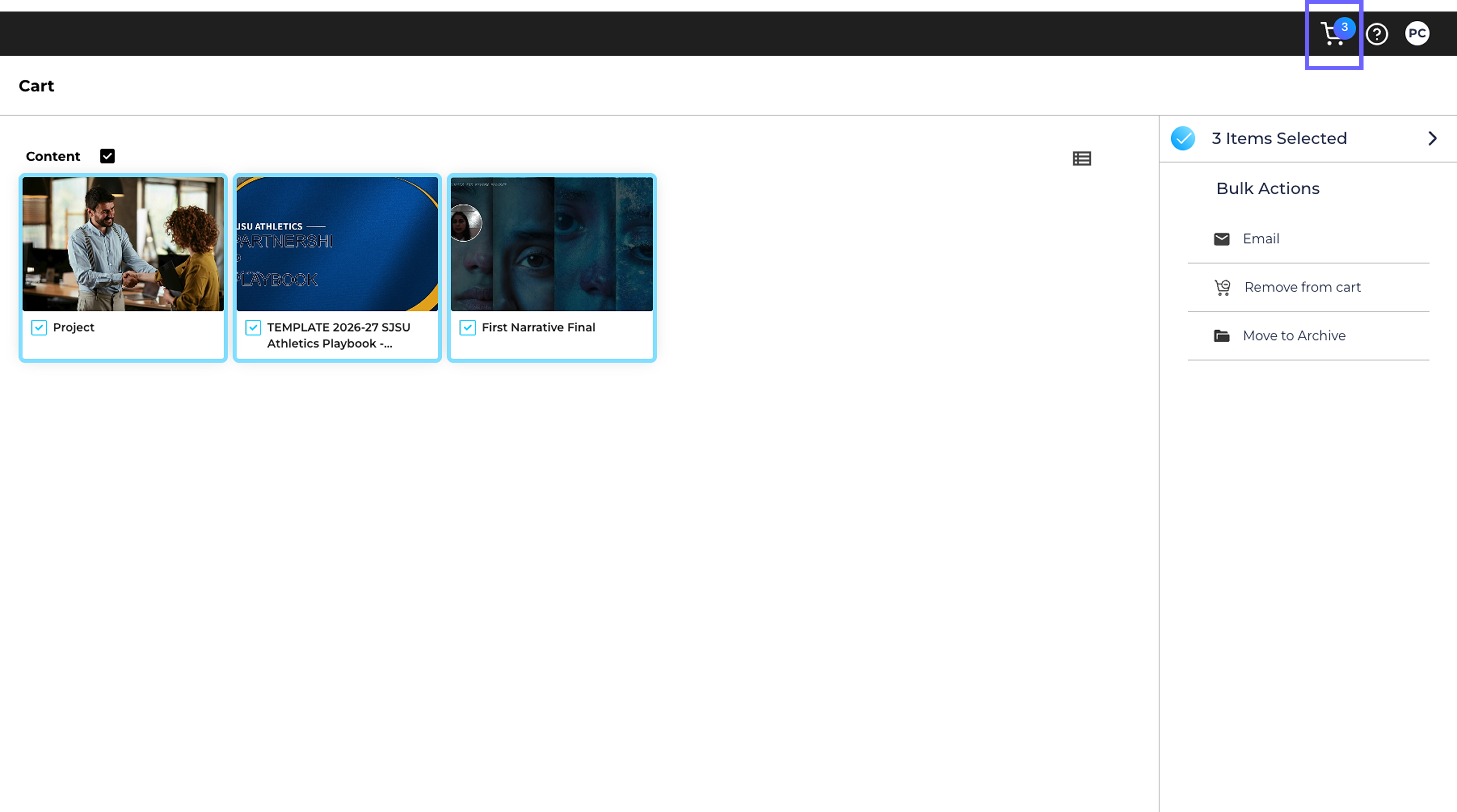
- 3.Click on the Cart icon at the top right of your screen to review the contents in your cart.
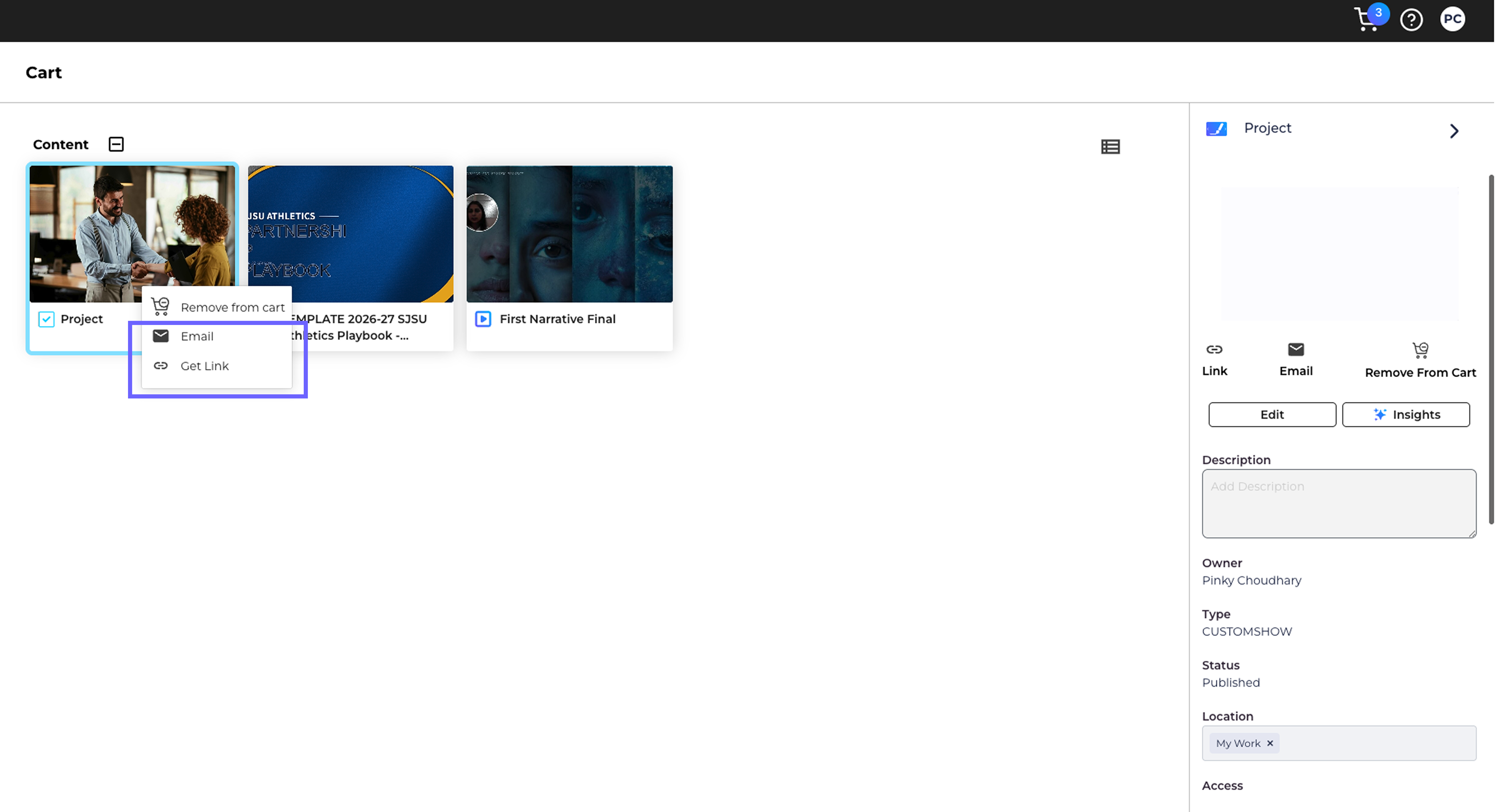
- 4.Now you can share a piece of content by right clicking the content and select Email or link to share the content.
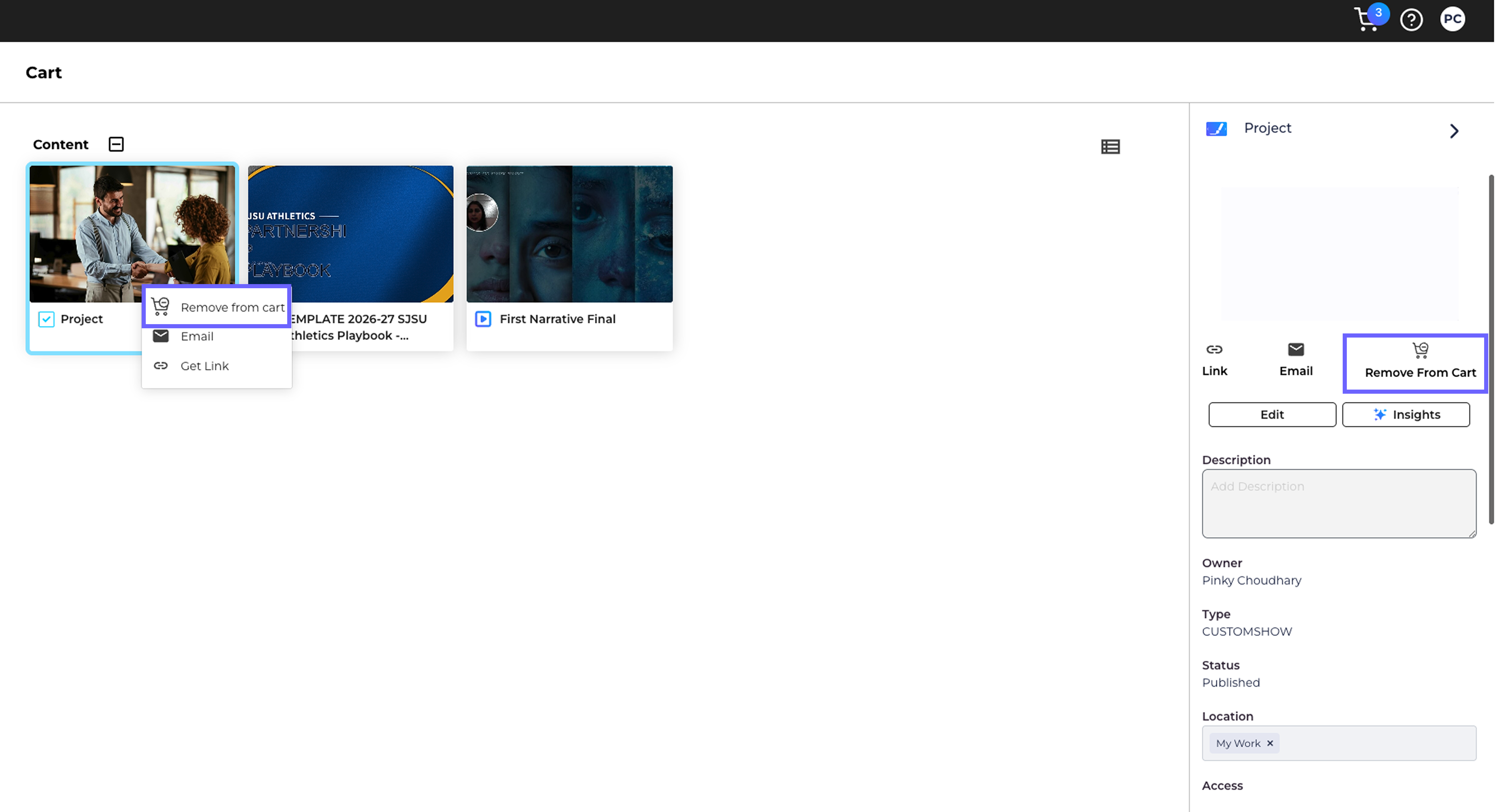
- 5.Right click on the content to remove it from the cart.
- 6.You share the content in the cart in bulk.
- 7.You can select multiple content and click on the Remove from Cart icon to remove multiple content from the cart.
- Content in the cart persists only for the current login session, cart is empty when you re-login.
- Cart can be used to share the content in bulk and also for quick access of the contents.
You can get a link to any piece of content in the Digital Library (no matter what kind of content it is) and send it using an email or your favorite messaging app.
Tips & Notes