

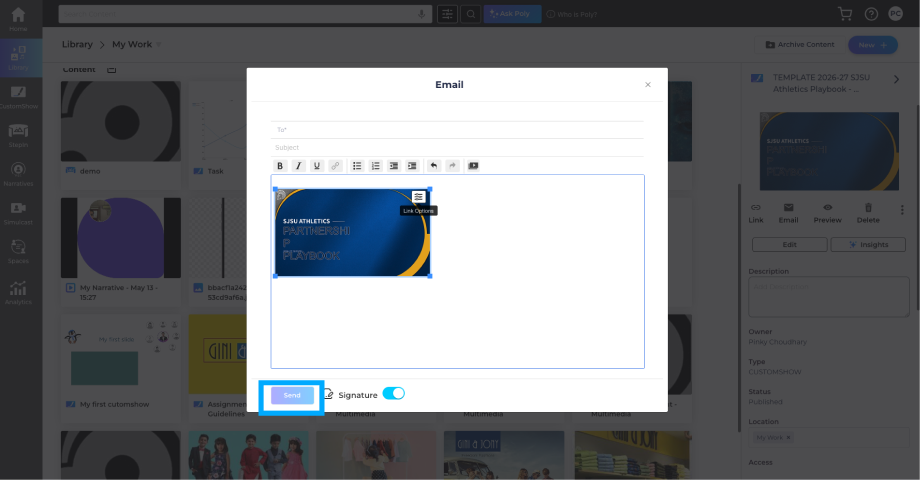
Share Content by Email lets you send Digital Library content to one or more recipients directly from Zoomifier. The Email window allows you to select recipients, add a subject and message, embed one or more content items as linked thumbnails, optionally include your email signature, and send the email. Open it from the Digital Library by selecting the Share or Email option for published content. You can also add more content or open Link Options to customize how embedded content links behave for recipients.
-
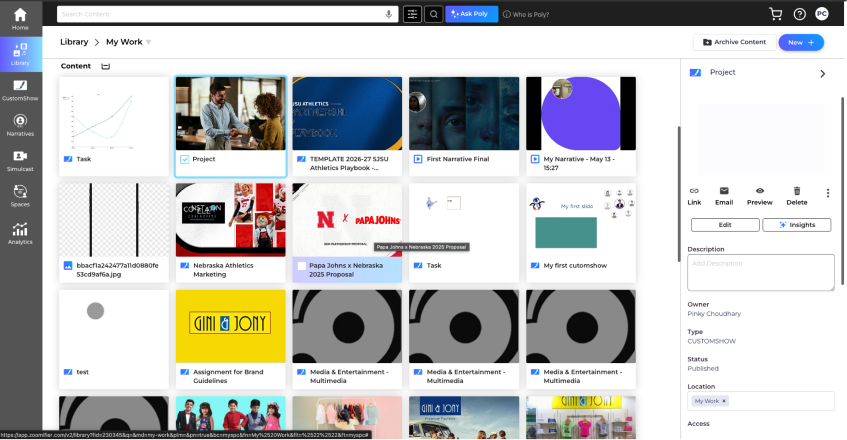
1. Open the Digital Library and find the published content you want to email. (Journeys must also have a published version.)
-
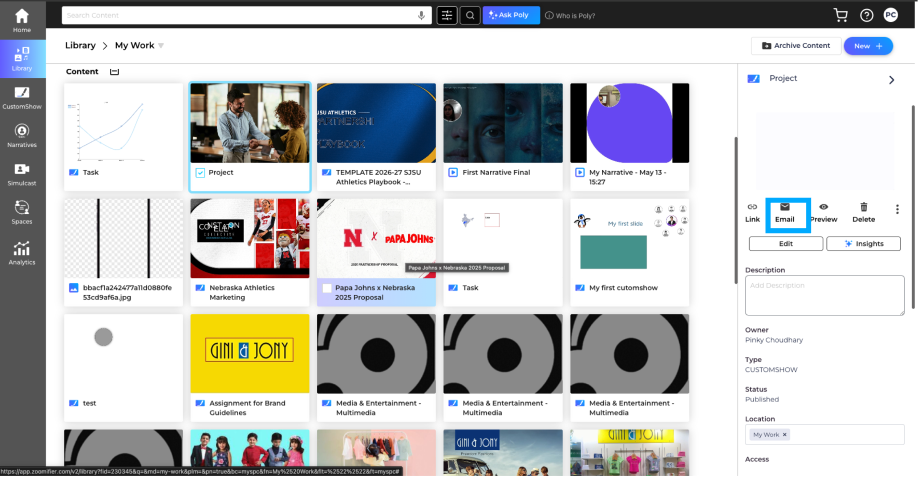
2. Open the content's Actions menu and select Share or Email. The Email window opens with the content already added.
-
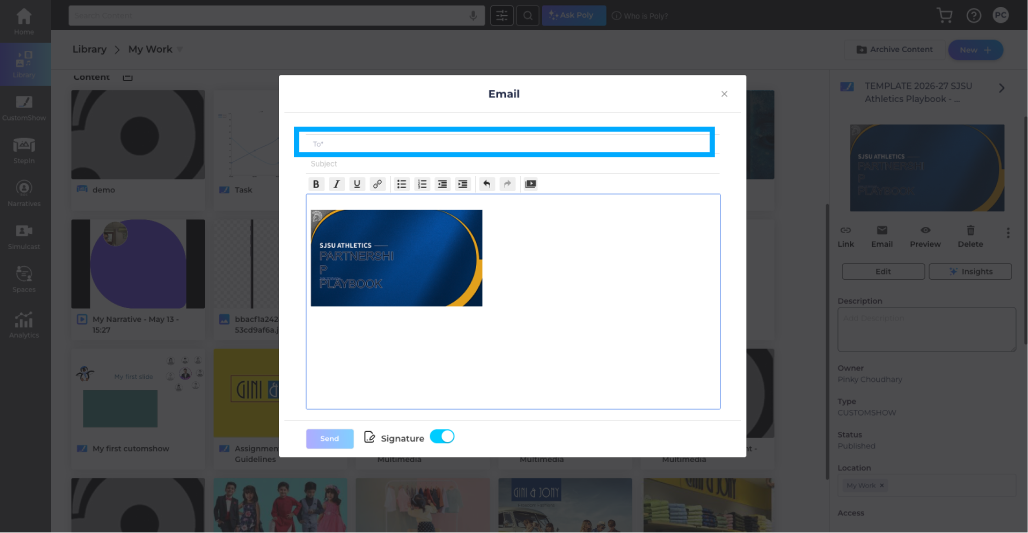
3. In the To field, add one or more recipients. Type at least 3 characters to search for contacts or enter a new email address.
-
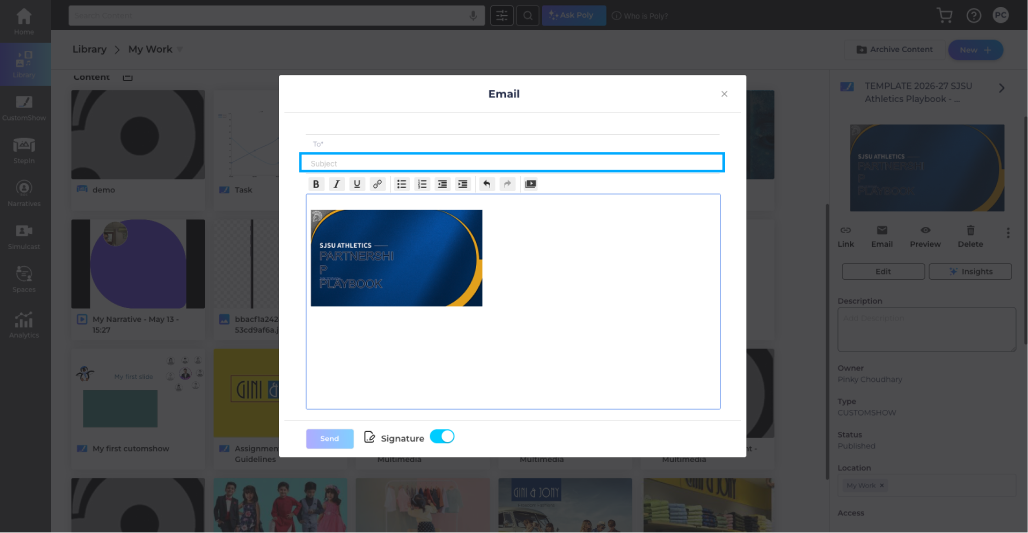
4. Enter a Subject for the email.
-
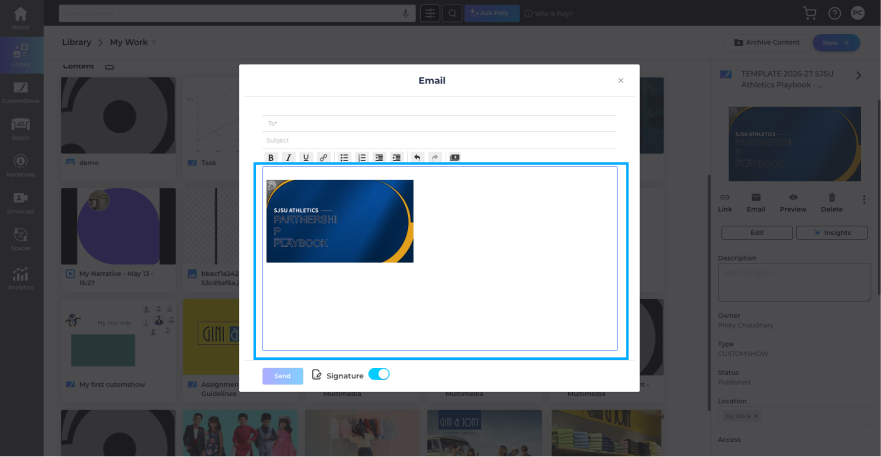
5. Review the message, edit the text if needed, and use the formatting tools to customize your email.
-
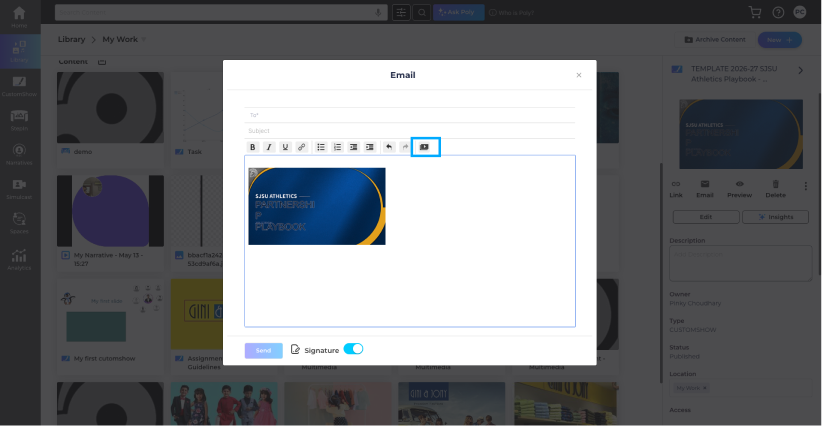
6. Optional: Click Add Content to insert additional Digital Library content into the email.
-
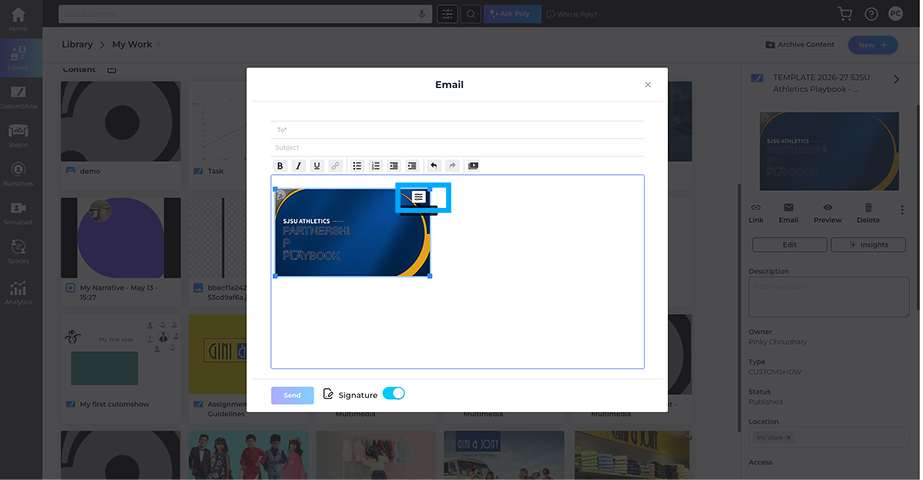
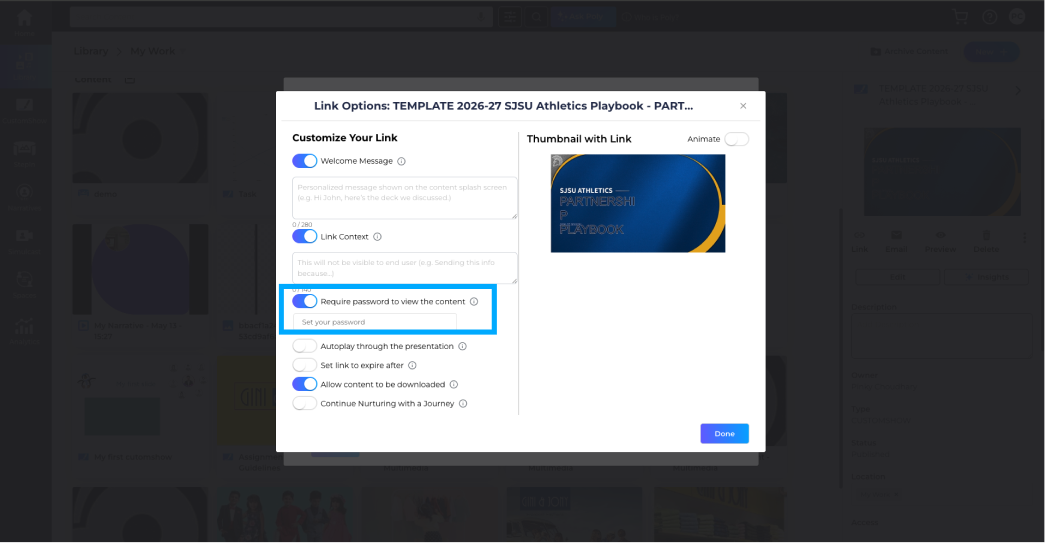
7. Optional: Select a content thumbnail and open Link Options to customize its sharing settings, then click Done.
-
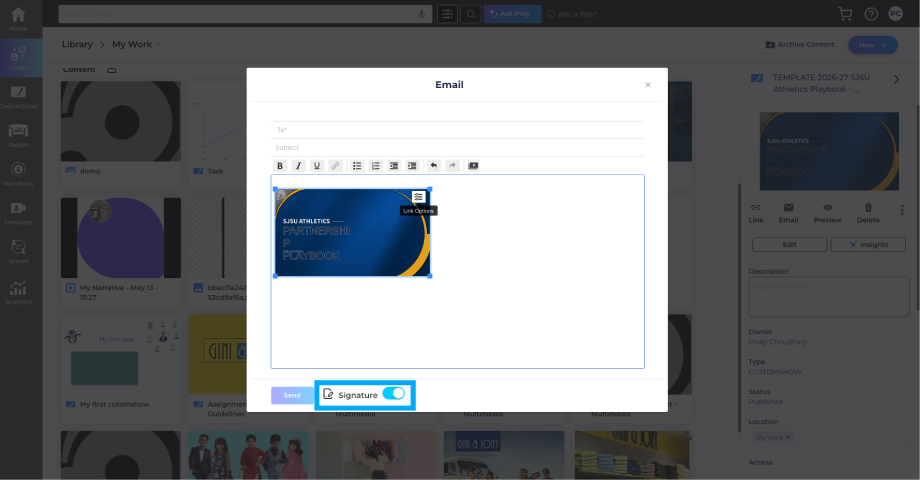
8. Optional: Enable Signature to include your email signature, or edit it if needed.
-
9. Click Send to email the content. A confirmation message appears when the email is sent successfully.
-
10. If a content item requires a password, open Link Options, set the password, and then send the email again.
Tips & Notes
- Published content only: Only published content can be shared by email. Journeys must also have a published version.
- Recipients required: Add at least one recipient before you can send the email.
- Valid email addresses: Make sure all recipient email addresses are valid.
- Multiple content items: Use Add Content to include multiple Digital Library items in a single email.
- Link Options: Customize the sharing settings for each embedded content item using Link Options.
- Email Signature: Enable Signature to include your saved email signature. You can edit it using the pencil icon.
- Salesforce integration: When sharing from Salesforce, the recipient's email may be filled in automatically.
- Password protection: If an embedded content item requires a password, set it before sending the email.
FAQ
Why can't I share content by email?
The content must be published before it can be shared. Journeys also require a published version.
Why is the Send button disabled?
Make sure you've added at least one valid recipient. If the issue continues, check whether any embedded content requires a password.
Can I share multiple content items in one email?
Yes. Click Add Content to insert multiple Digital Library items into the same email.
How do I change the sharing settings for embedded content?
Select the content thumbnail and open Link Options to update its sharing settings.
How do I add or edit my email signature?
Click the pencil icon next to Signature, make your changes, save them, and enable the Signature toggle.