

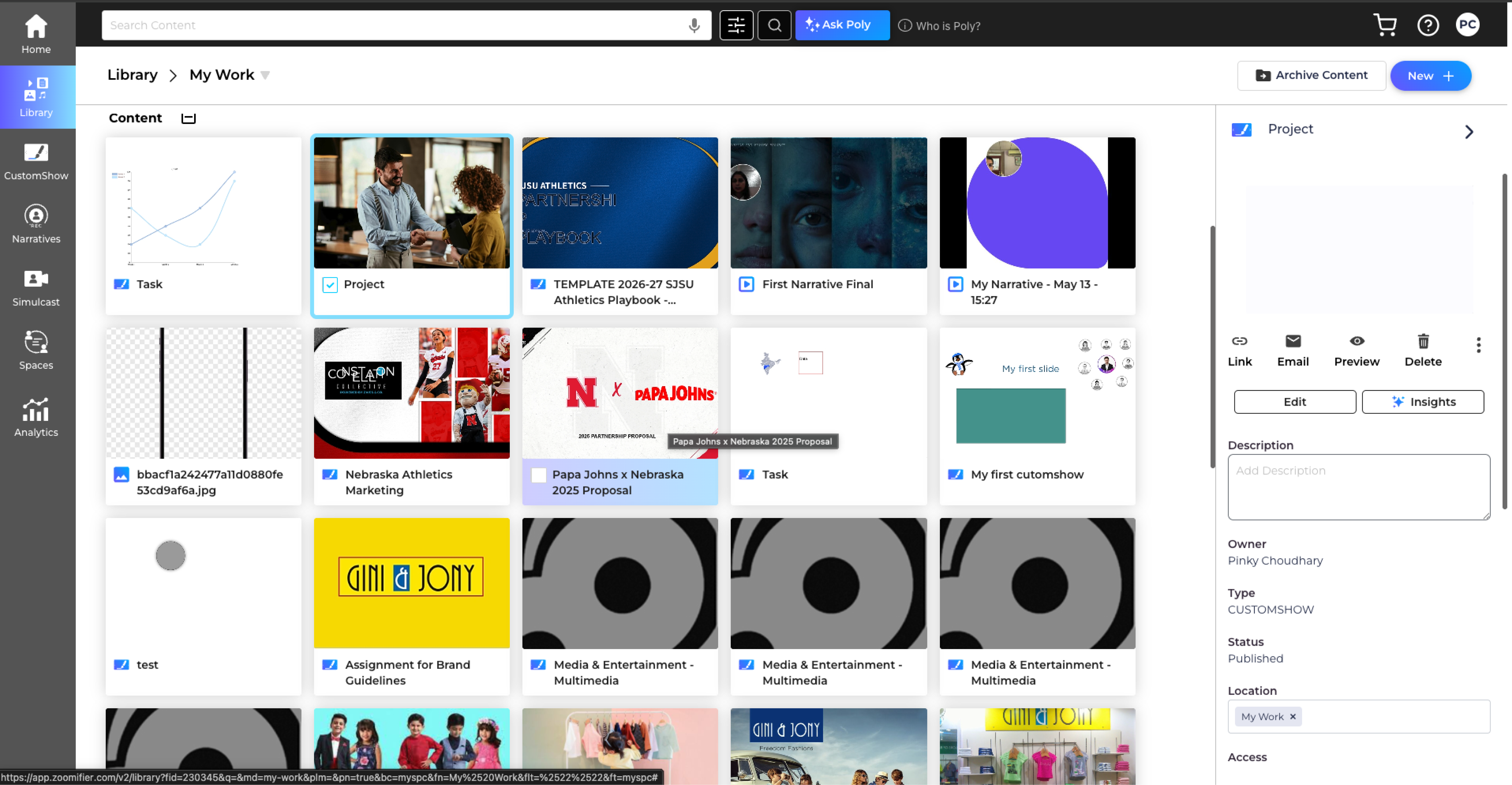
- 1.Open the Digital Library and locate the published content you want to share. (Journeys must have a published version.)
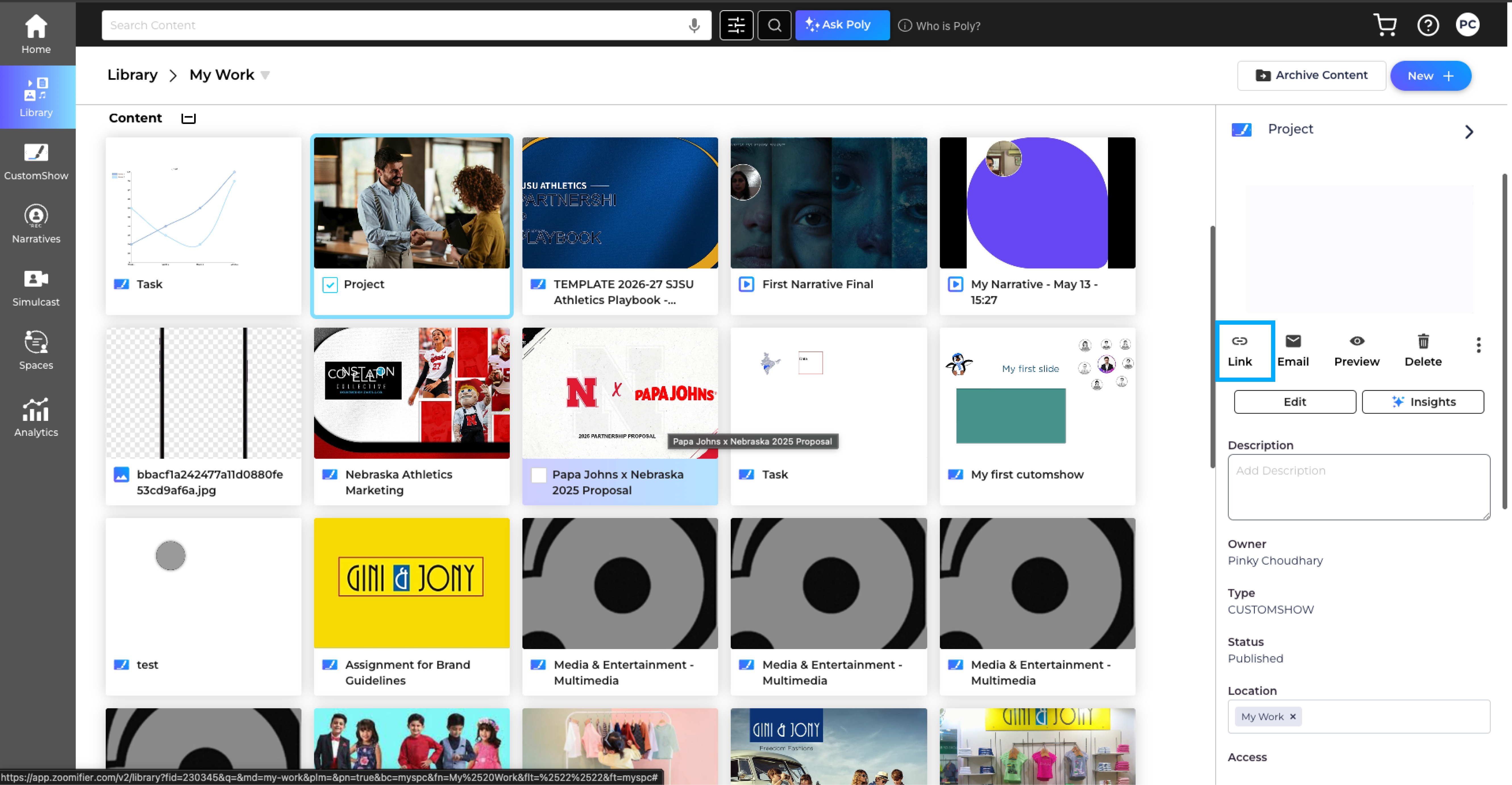
- 2.Open the content's Actions menu and select Get Link to open the Link Options window.
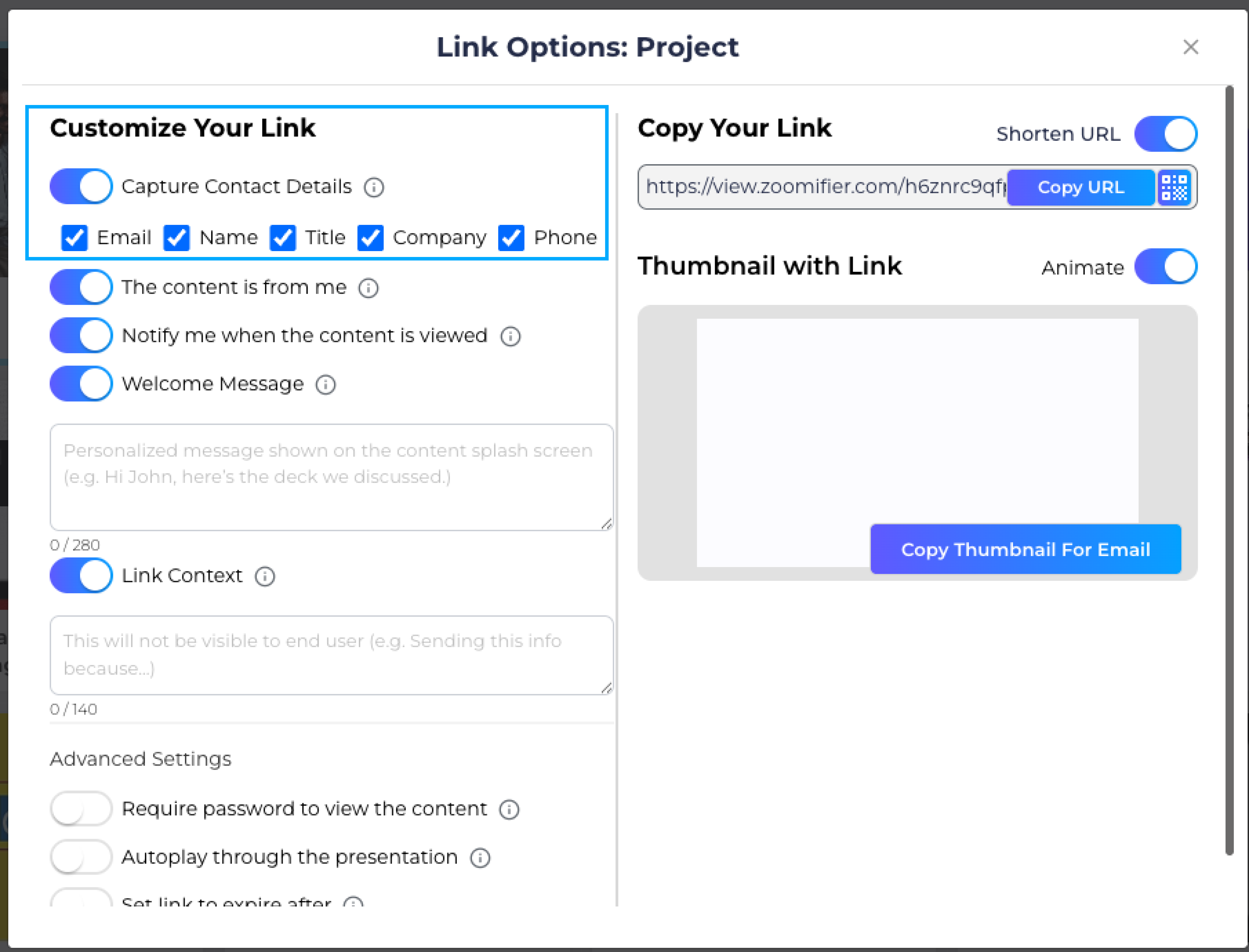
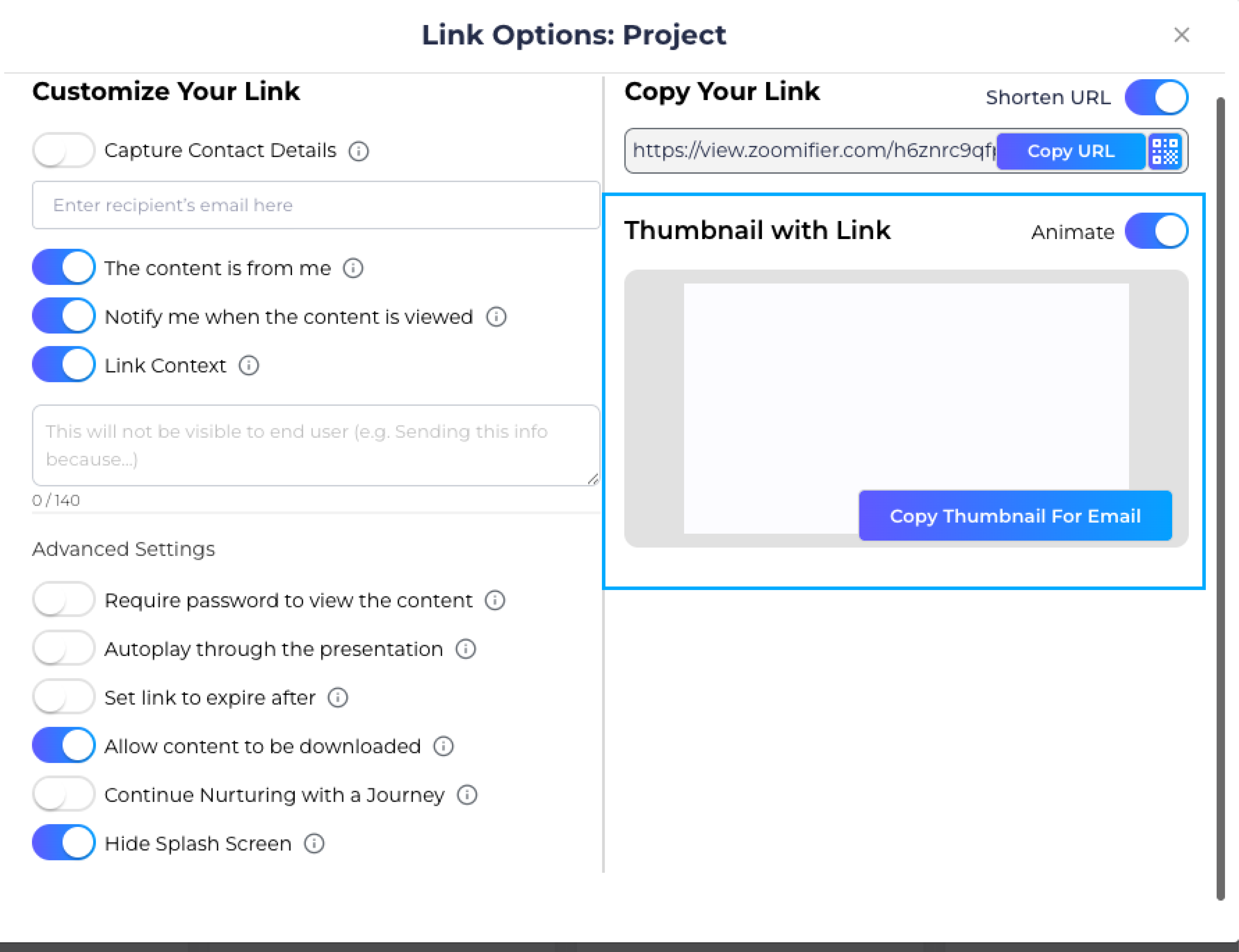
- 3.Under Customize Your Link, review the available options and enable or disable the settings you need.
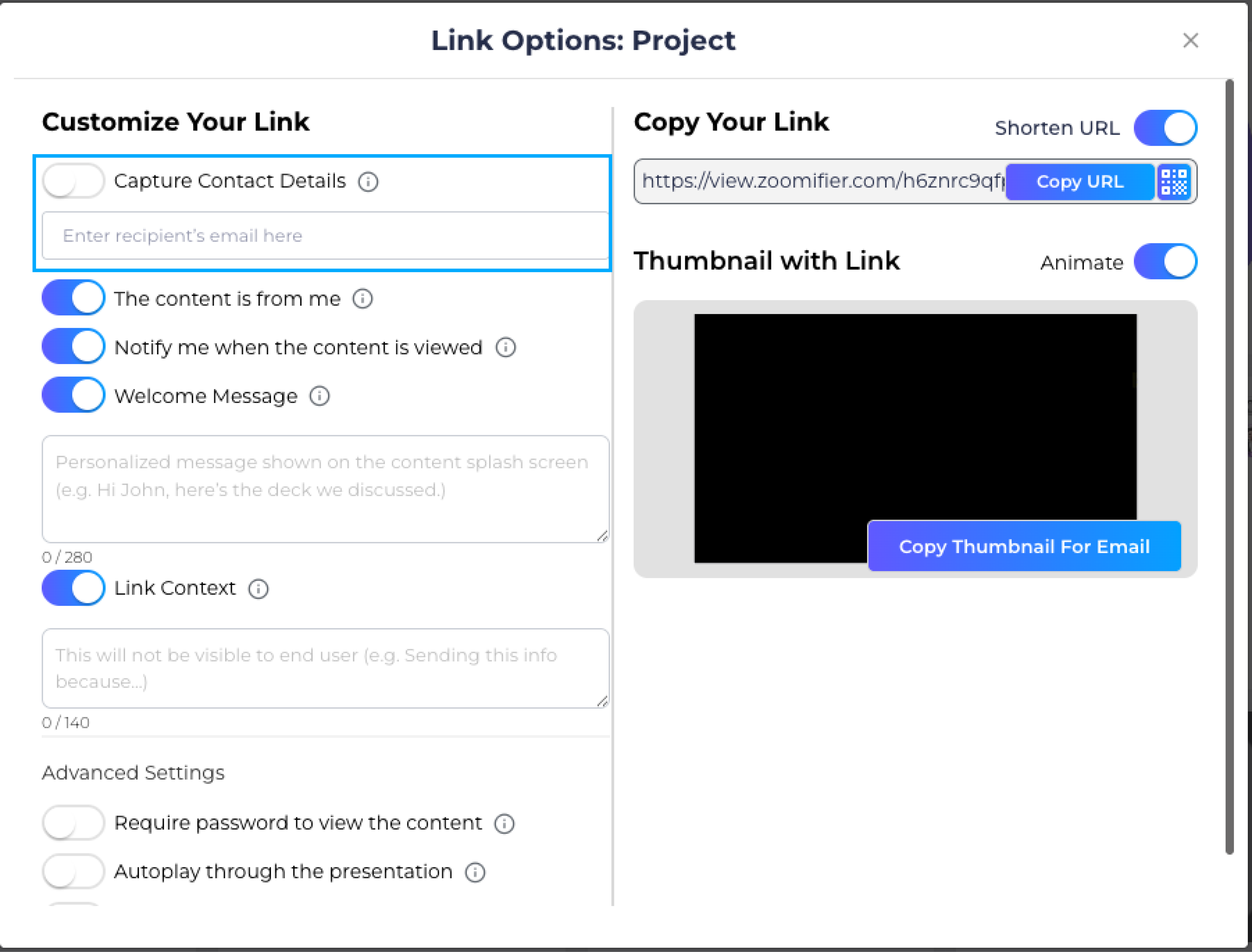
- 4.(Optional) Enable Capture Contact Details and choose the information viewers must provide before accessing the content.
- 5.(Optional) Enter the recipient's email to associate the link with a specific contact.
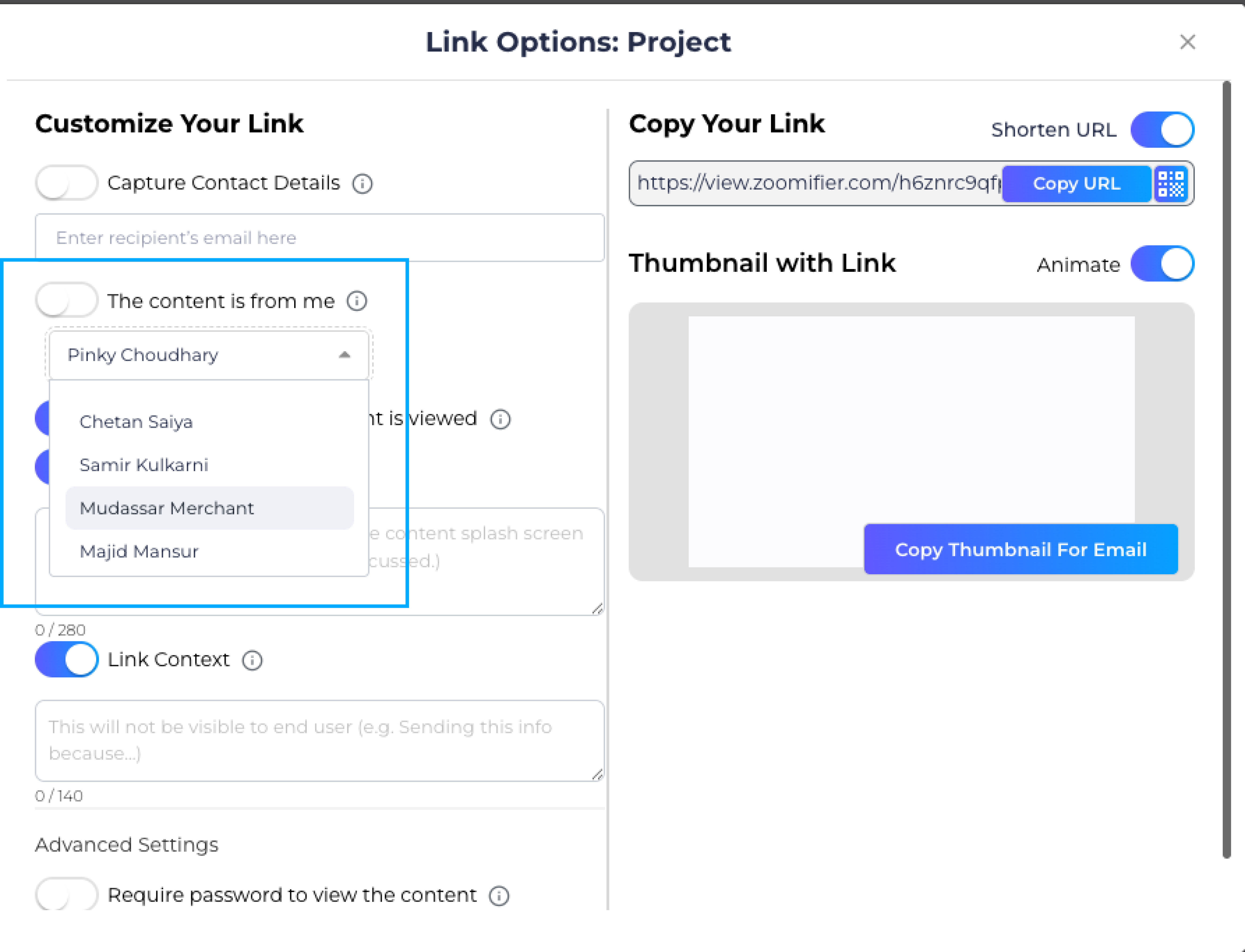
- 6.Leave The content is from me enabled to share as yourself, or disable it and select another sender.
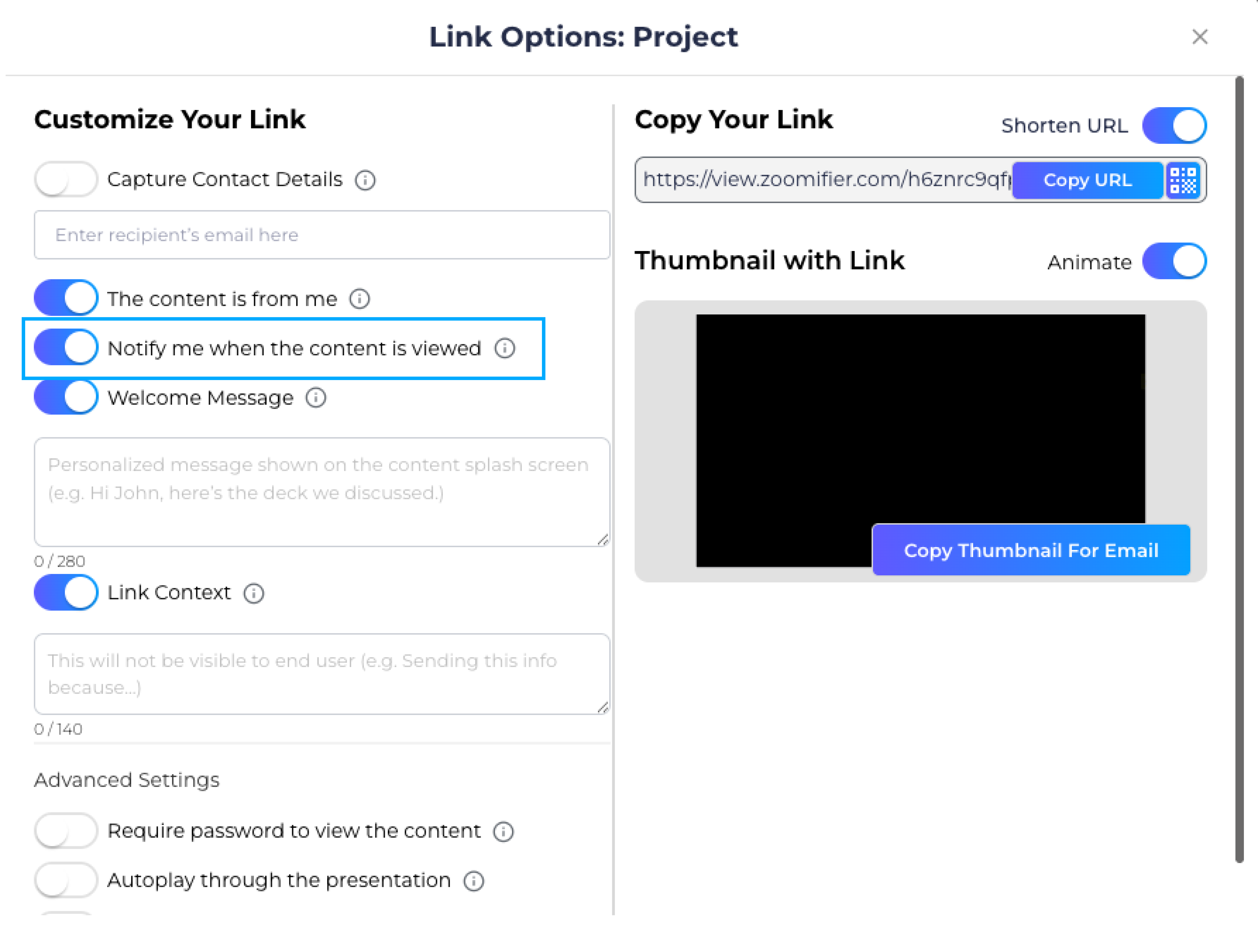
- 7.(Optional) Enable Notify me when the content is viewed to receive email notifications when the link is opened.
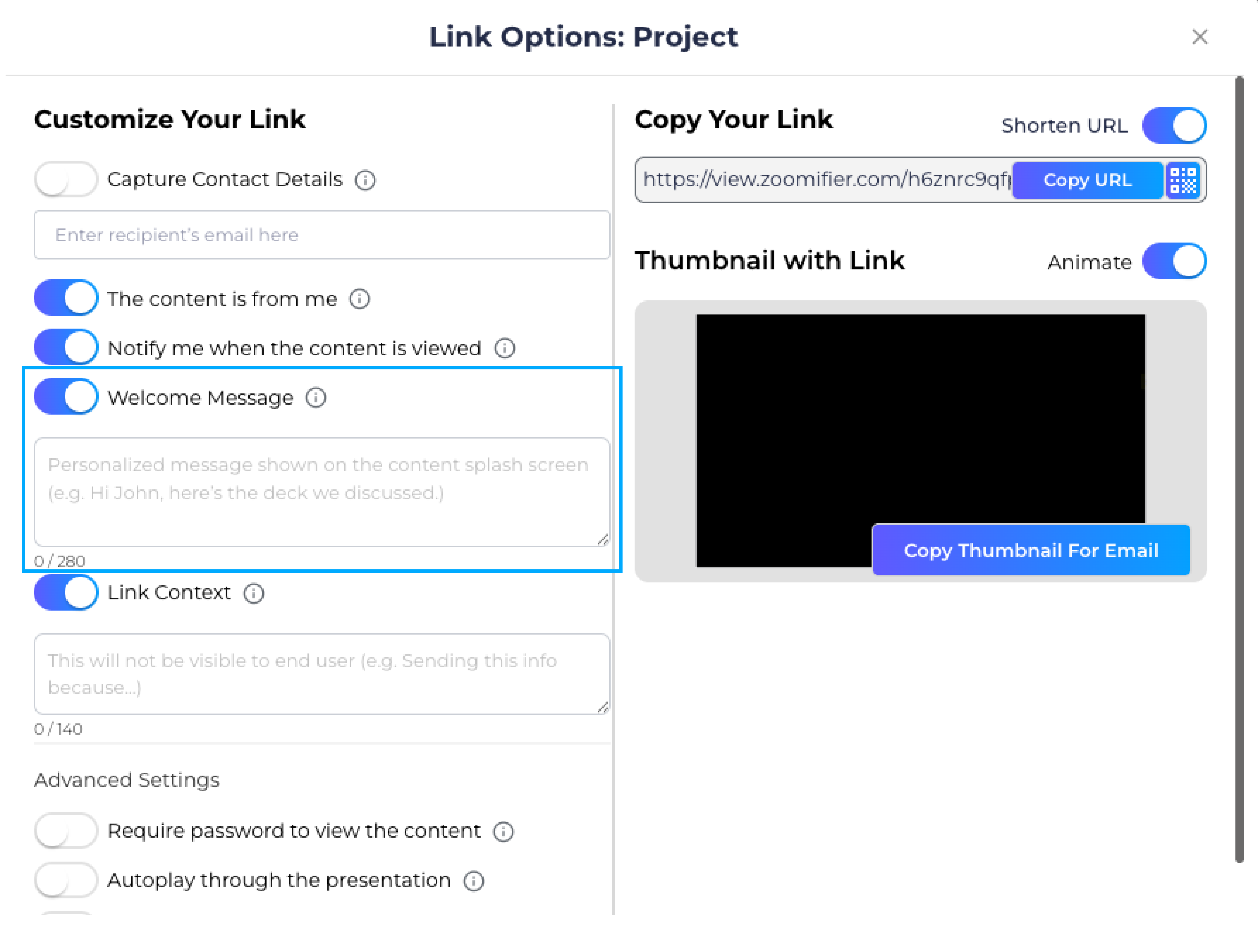
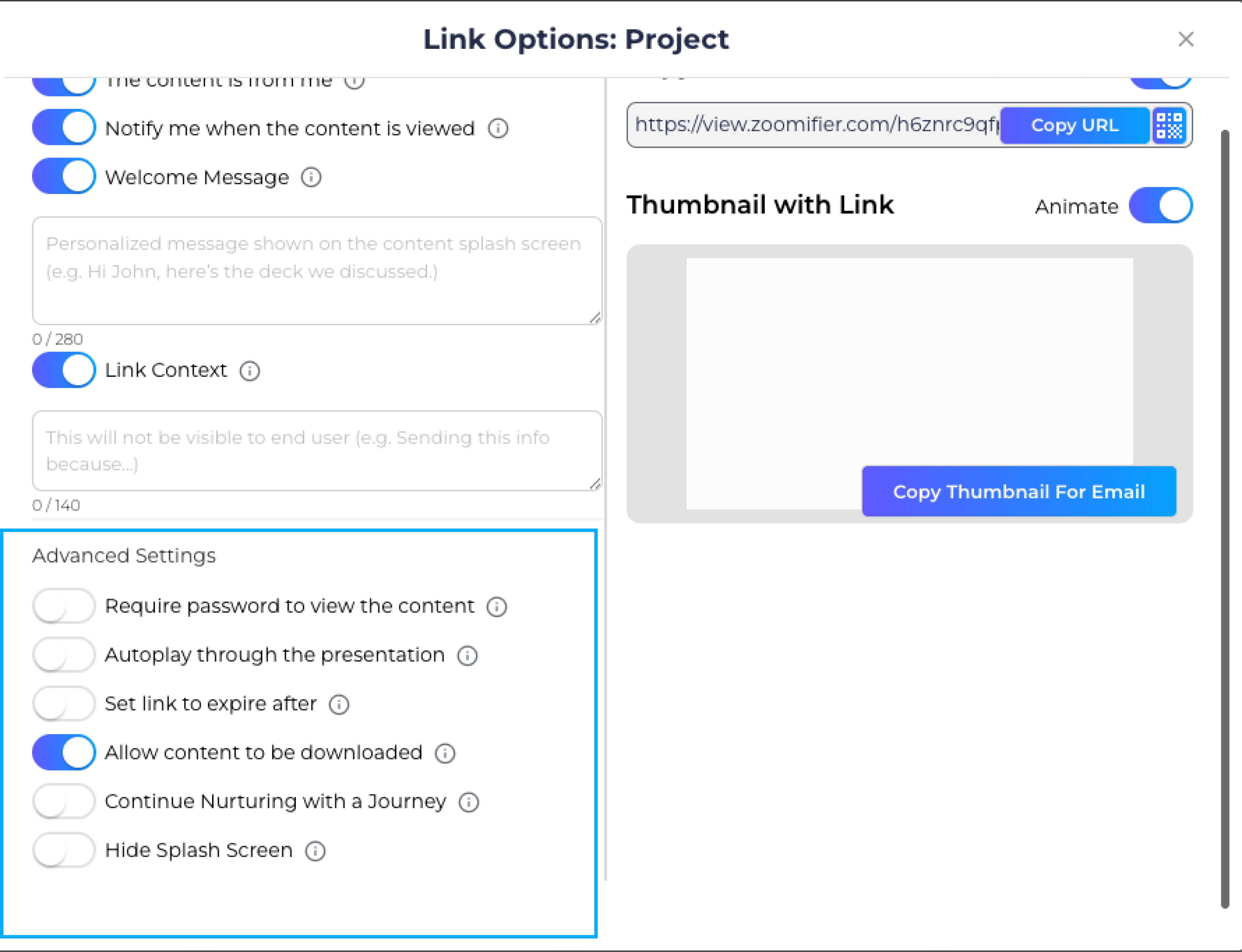
- 8.(Optional) Enable Welcome Message and enter a message for viewers to see before opening the content.
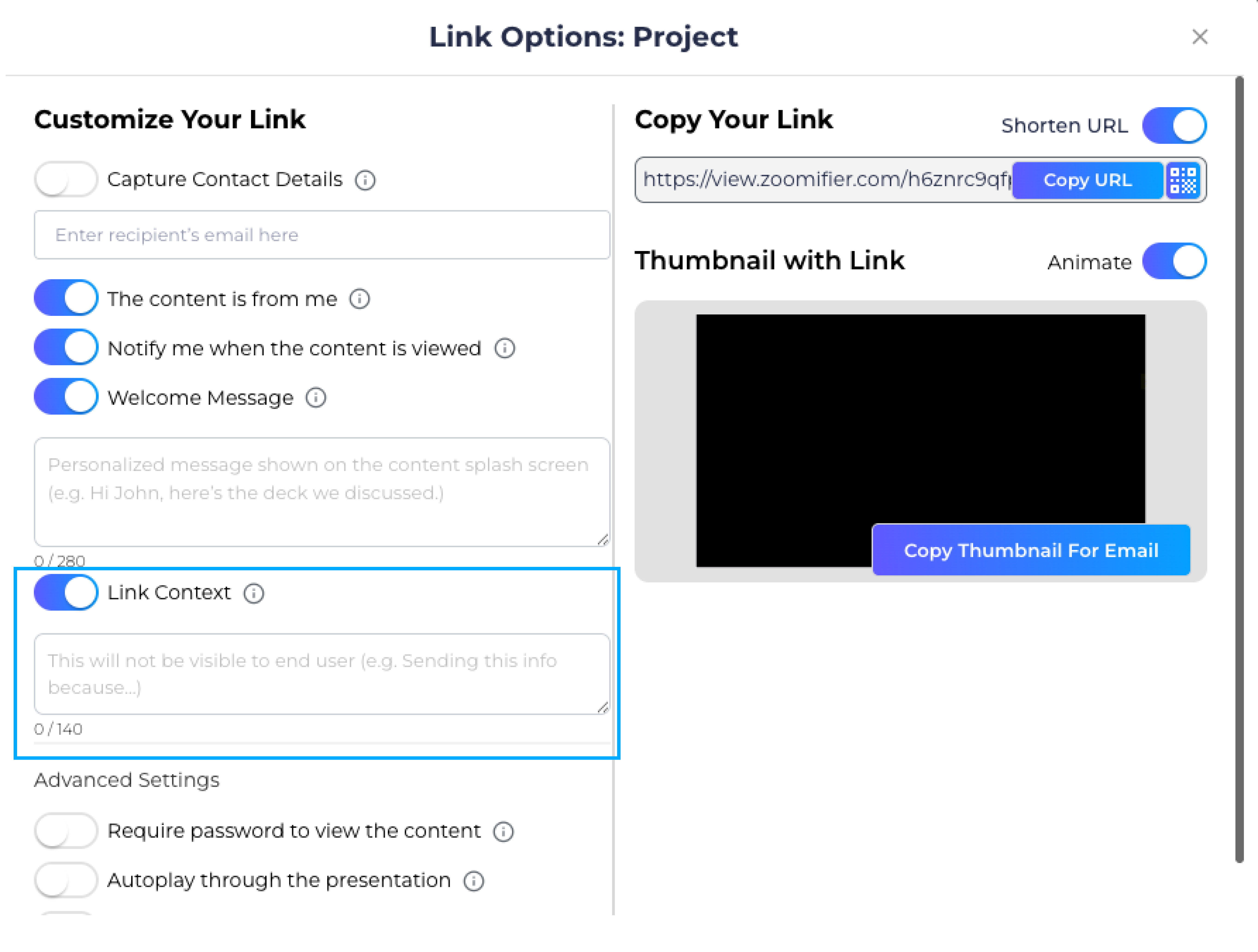
- 9.(Optional) Enable Link Context and add a private note for your engagement analytics.
- 10.Under Advanced Settings, configure options such as Password Protection, Autoplay, Link Expiration, and Download Permissions.
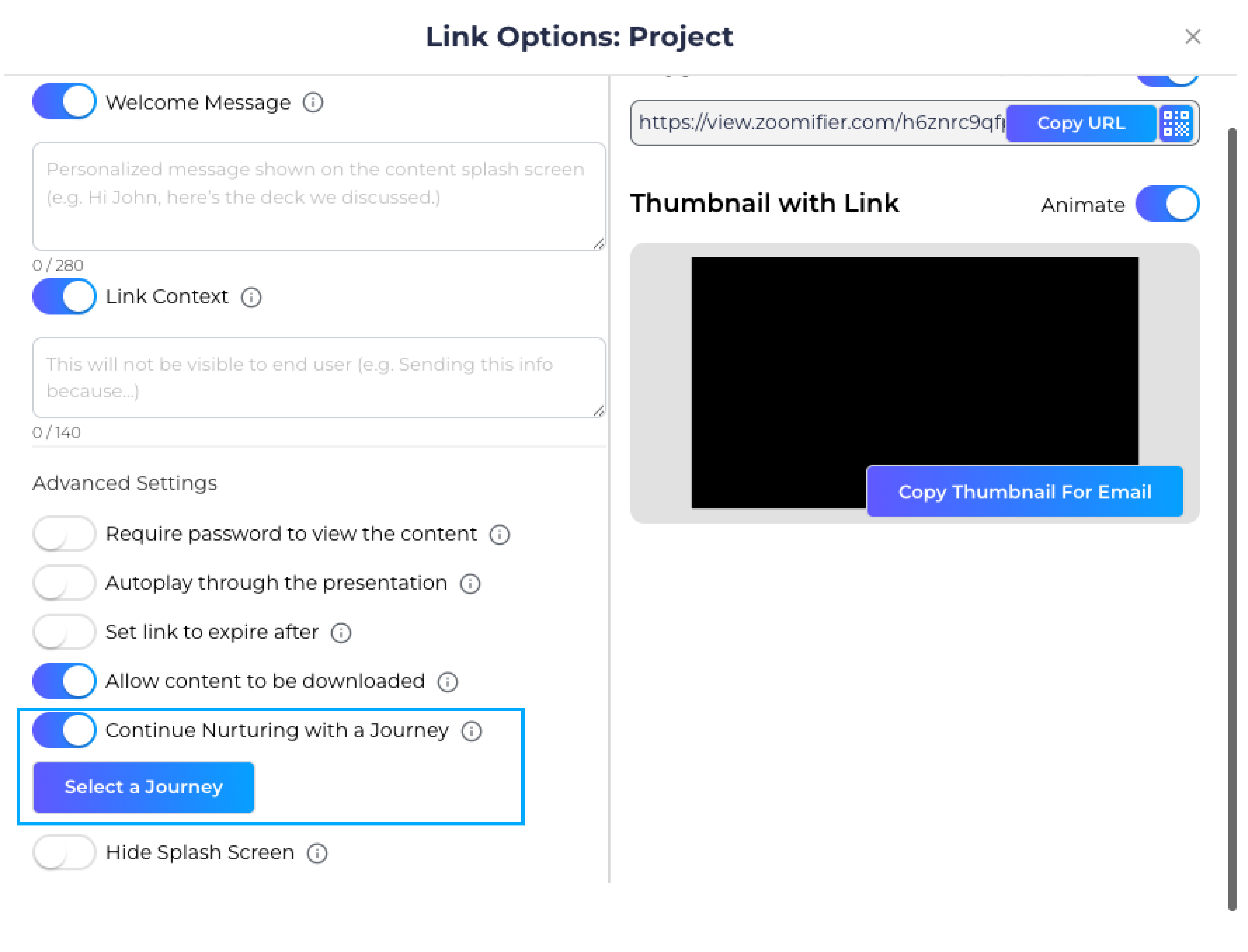
- 11.(Optional) Enable Continue Nurturing with a Journey, select a Journey, and choose the recommendation email frequency.
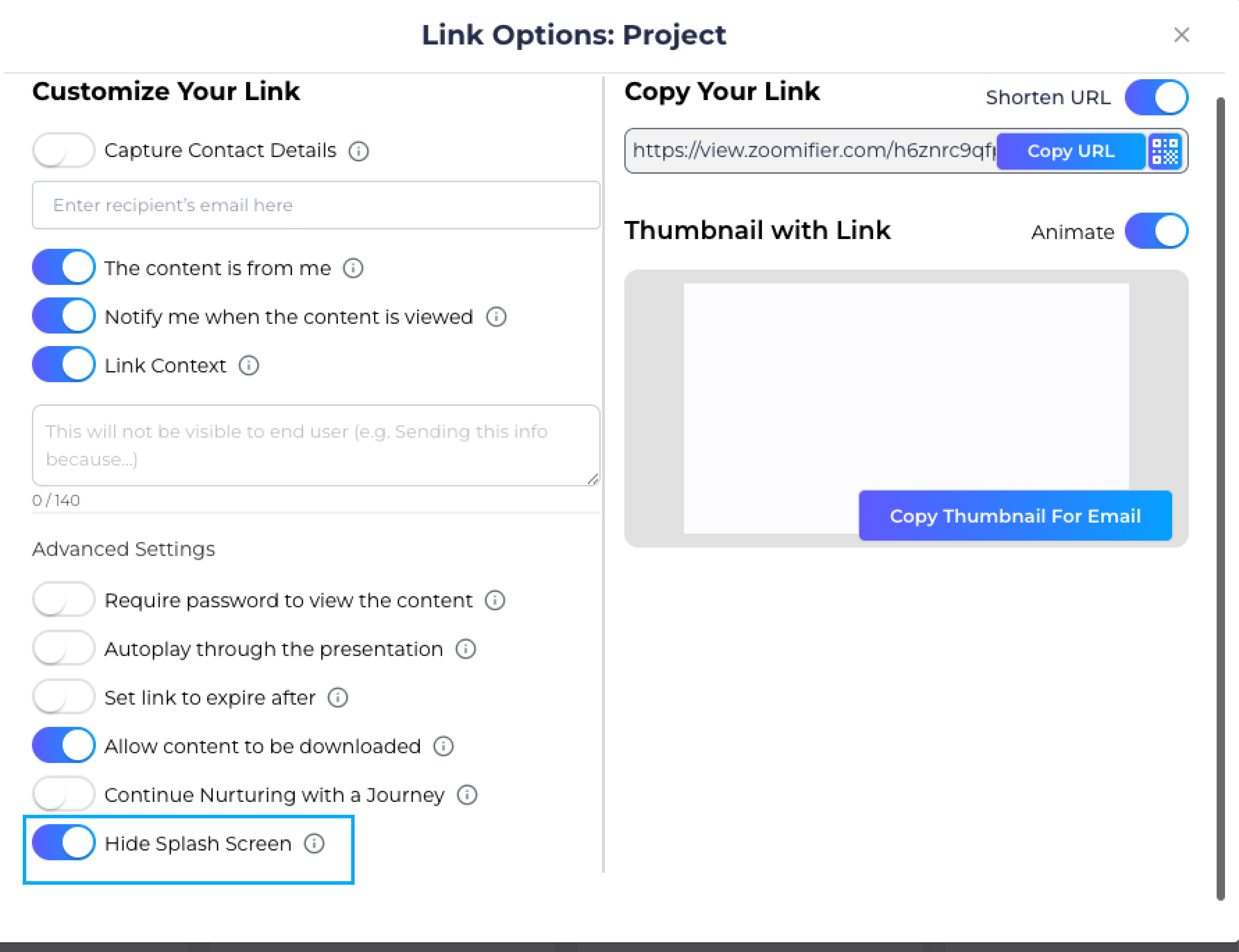
- 12.(Optional) Enable Hide Splash Screen to open the content directly.
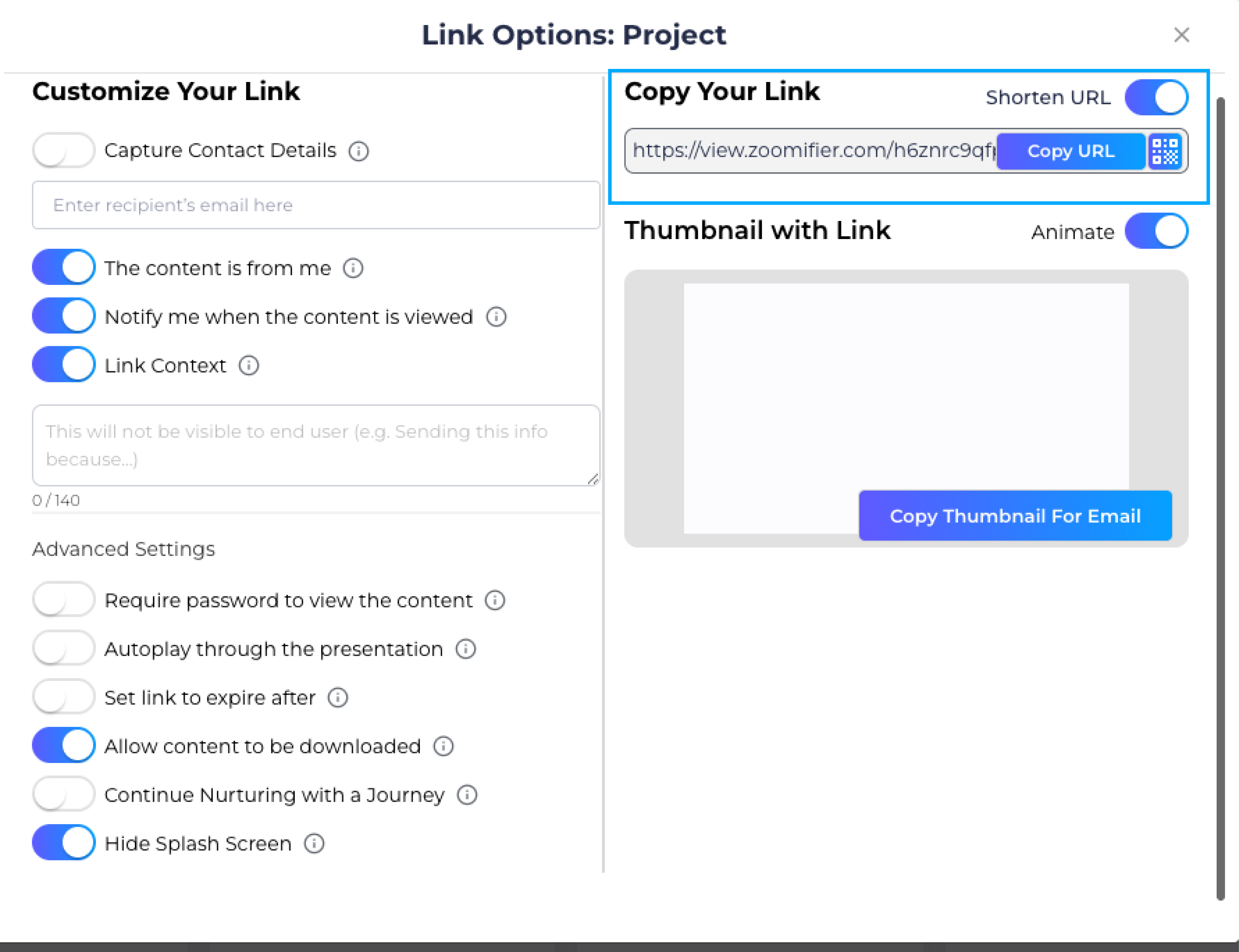
- 13.Under Copy Your Link, optionally enable Shorten URL, then click Copy URL. A QR code is also available for shortened links.
- 14.(Optional) Under Thumbnail with Link, enable Animate (if supported), then click Copy Thumbnail for Email.
- 15.Close the Link Options window and share the copied link or thumbnail wherever needed.
Get Content Link (also shown as **Link Options**) is where you create a shareable link for Digital Library content and control how viewers experience it.
From this screen you customize the link who it is from, whether viewers must share contact details or a password, whether the link expires, and more then copy the URL or a thumbnail for email. Open it from the Digital Library on published content via the link action. Some options depend on your plan and organization settings
(for example Free / Tier 1 accounts have limits on contact capture and link expiry).
Tips & Notes
- Published content only: You can only generate links for published content. Journeys must also have a published version.
- Plan limitations: Some options, such as Capture Contact Details and Link Expiration, may be unavailable depending on your subscription plan.
- Organization settings: Features like contact capture, password protection, link expiration, and downloads depend on your organization's settings.
- Contact capture: If you require Name, Title, or Company, you must also require Email or Phone.
- Password protection: Passwords can contain up to 10 characters. Enter a password before you can copy the link.
- Hide Splash Screen: This option is unavailable when Capture Contact Details or Password Protection is enabled. Enabling it also hides the Welcome Message.
- Link Context: This note is private and only appears in your engagement analytics.
- Continue Nurturing: Select a Journey before configuring recommendation emails. This option isn't available for Journey content or Free/Tier 1 accounts.
- Shorten URL: Enable Shorten URL to create a shorter link and access its QR code.
- Animated thumbnails: The Animate option is available for supported content types and may take a few moments to generate.
FAQ
Why can't I generate a content link?
The content must be published before you can generate a link. Journeys also require a published version.
Why don't I see options like Contact Capture, Password Protection, or Link Expiration?
These options depend on your organization's settings and subscription plan.
Why is the Copy URL button disabled?
Make sure you've completed all required fields, such as entering a password or requiring Email or Phone when using Contact Capture.
What's the difference between Welcome Message and Link Context?
Welcome Message is shown to viewers before they open the content. Link Context is a private note that appears only in engagement analytics.
What does The content is from me do?
It shares the content as you. Turn it off to choose another team member as the sender.
What's the difference between Copy URL and Copy Thumbnail for Email?
Copy URL copies the shareable link. Copy Thumbnail for Email copies a clickable thumbnail image with the embedded link.