
Editing Text
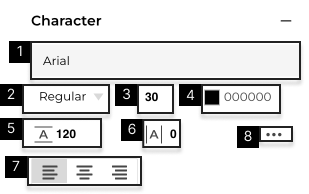
- 1. View or click to select text Font.
- 2. View or click to change the text style. Styles will vary based on the font. Learn more about uploading Custom Fonts.
- 3. View or set text size (in pixels).
- 4. View or select to change the text color. Learn more about Fill.
- 5. View or set Line Spacing (in pixels).
- 6. View or set Kerning (Space between two characters) (in pixels).
- 7. Adjust text alignment to Left, Center, or Right.
- 8. Advanced Text Settings.
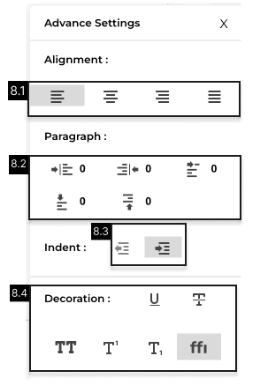
- 8.1 Adjust Text Alignment. Left, Center, Right, and Justify text.
- 8.2 Set paragraph spacing. Add spacing to the Left and Spacing to the Right, Spacing Before, Spacing After. Add spacing for first-line Indent.
- 8.3 Set Indent and Outdent.
- 8.4 Add Decoration to text such as Underline (U),
Line-Through (T), ALL CAPS (TT), SuperScript (T¹), SubScript (T₁), and Ligatures (FFi).
Note:
- You can also set the Text Size, Line Spacing, Kerning, and Paragraph Spacing by selecting an element and using your mouse.
- Learn more about uploading Custom Fonts.