
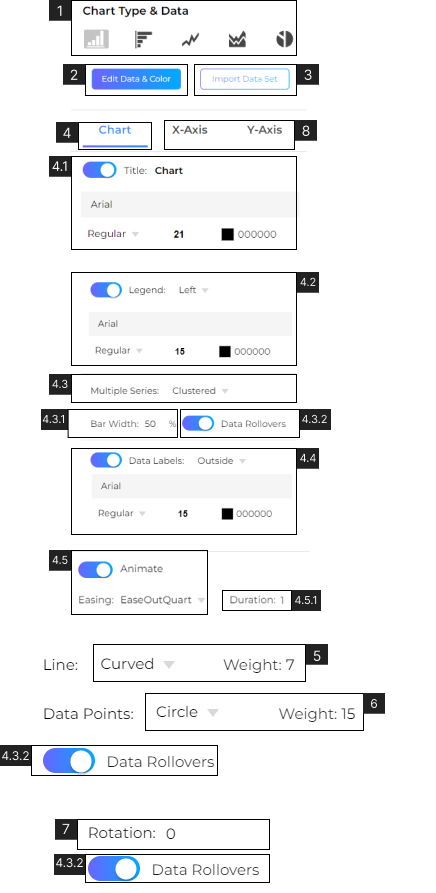
- 1. View or select the type of Chart. Choose from Vertical Bar Chart, Horizontal Bar Chart, Line Chart, Area Chart, or Pie Chart.
- 2. Click to add or edit Data in the chart.
- 3. Click to Import Data for the chart from the desktop.
- 4. Click to view and edit Chart Properties.
- 4.1. Edit chart Title.
- – Choose to edit Text, Font, Font Style, Size, and Color. Learn more about Editing Text & Character.
- 4.2. Edit chart legend.
- – Choose the legend position on the chart’s left, right, top, or bottom.
- – Choose to edit legend Text, Font, Font Style, Size, and Color. Learn more about Editing Text & Character.
- 4.3. View or select Chart Style. Choose Multiple Series from Clustered or Stacked. (Only for Bar Charts)
- 4.3.1. View or Set Bar width (in %)
- 4.3.2. Toggle for Data Rollovers, when turned ‘ON’ a data label will be showcased on the chart when the cursor hovers over the chart.
- 4.4. Edit Data Labels. Choose the Data Labels position to outside, right, or left. Choose to edit Text, Font, Font Style, Size, and Color. Learn more about Editing Text & Character.
- 4.5. Toggle for Animate, When turned ‘ON’ you can set Animation to the chart. Choose from 31 types of animations.
- 4.5.1. View or set the Duration of the animation (in seconds)
- 5. View or Set Line Type. Choose from Straight or Curved. (Only for Line Chart)
- – View or set the line weight (in pixels).
- 6. View or Set Data Point Style. Choose from ‘None’, ‘Rectangle’, ‘Circle’, ‘Cross’, ‘Diamond’, or ‘Triangle’. (Only for Line Chart).
- – View or set the Data Point Weight (in pixels).
- 7. View or Set Rotation of the Pie Chart (in degrees). (Only for Pie Chart)
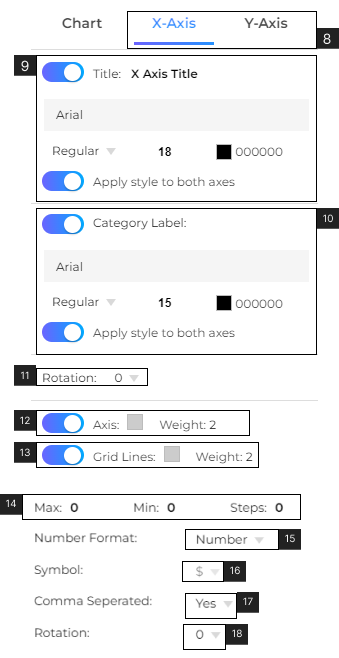
- 8. Click to view and edit Axis Properties.
- 9. Edit Axis Title. Choose to edit Text, Font, Font Style, Size, and Color. Learn more about Editing Text & Character.
- 10. Edit Category/Value Label. Choose to edit Text, Font, Font Style, Size, and Color. Learn more about Editing Text & Character.
- 11. Change the rotation of labels on the axis. Choose from ‘0’, ‘45’, ‘90’. (in degrees). (For the Vertical Chart this option is in X-Axis. For the Horizontal Bar chart the option is in Y-Axis).
- 12. Toggle for Axis, when turned ‘ON’ the chart will show the axis line.
- – View or set Axis Color. Learn More about Fill.
- – View or set the Weight (Thickness) of the Axis. (in pixels)/li>
- 13. Toggle for Grid Lines, when turned ‘ON’ the chart will show the grid lines.
- – View or set grid lines Color. Learn More about Fill.
- – View or set the Weight (Thickness) of grid lines. (in pixels)/li>
- 14. View or set values on the axis. The values can be set in Max, Min, and number of steps on the axis line.
- 15. View or set the number format for the axis values. Choose from ‘Number’, ‘Percentage’, or ‘Currency’.
- 16. View or set a symbol for the value. Choose from ‘$’, ‘€’, ‘RMB’, ‘A$’, or ‘C$’. (Only for Currency values).
- 17. View or set a comma to separate the value. (Only for Number and Currency).
- 18. View or set rotation for the axis value. Choose from ‘0’, ‘45’, or ‘90’ (in degrees).
Chart Properties
Axis Properties