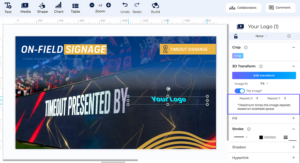
This feature allows users to transform an image by dragging its four corners to create a realistic perspective effect, making the image appear tilted or placed on a surface. Users can also control how the image fits inside the shape and optionally repeat it as a pattern.
3D Transform helps create realistic and visually engaging presentations by placing images onto angled surfaces such as laptop screens, phone mockups, walls, or billboards. It gives slides a modern and professional look while allowing users to easily customize image perspective and placement.
Open the presentation and select the slide containing the image you want to transform.

Click the image to open the Properties panel.
In the Properties panel, expand the 3D Transform section.
Click Edit Transform.
Drag any of the corner handles to reshape the image with perspective.
(Optional) Choose an Image Fit option:
Stretch — fills the shape completely
Fill — covers the shape and may crop the image
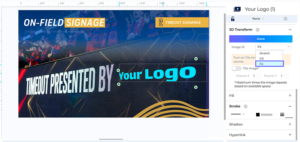
   Fit — shows the full image inside the shape
You can also replace the placeholder logo with your company logo.

(Optional) Enable Tile Image to repeat the image as a pattern.

(Optional) Adjust: Repeat X Repeat Y
to control how many times the image repeats.
Click Done to apply the transformation.
To edit the transformation later, select the image again and click Edit Transform. To undo changes, use Undo or press Ctrl/Cmd + Z.
Tips & Notes
3D Transform works best when matching an image to a surface like a laptop, phone, wall, or billboard.
Tiling is only available when Image Fit is set to Fit.
GIF images are not supported for 3D Transform.
Locked slides or locked elements cannot be transformed.
Only one image can be transformed at a time.
If no corners are moved, the transformation will not be saved.
The perspective effect is visible in Present mode, shared links, and exports.
 Yes. The transformation is part of the slide and renders the same way in the editor, in present mode, in shared links, and in exported formats viewers don’t need to do anything special.
Yes. The image’s rotation is respected separately from the 3D Transform — you can rotate the whole element using the normal rotate handle and then enter Edit transform to adjust the corners on top of that rotation.
Book Free Consultation
Sales Enablement Content Audit
THANK YOU !
"For your interest in Sales Enablement Content Audit. We will follow up within one business day to schedule a time for the audit."