

MFA Settings: Multi-factor authentication (MFA)
- MFA Settings allows administrators to enable or disable email-based multi-factor authentication (MFA) for their organization. When enabled, users who sign in with an email address and password must enter a 6-digit verification code sent to their email before accessing Zoomifier.
- Style From this page, administrators can turn Enable Email Based MFA On or Off using a single toggle. The change is saved automatically and applies to all users who sign in with an email address and password. Users signing in with SSO, social login, Salesforce, or the desktop app are not required to enter the verification code.
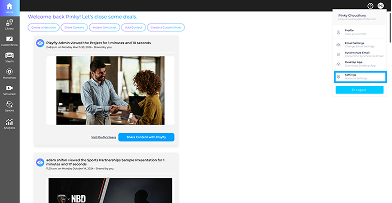
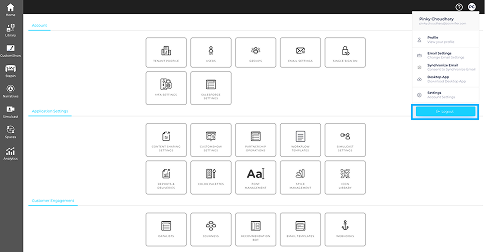
- 1. Open your Profile menu and select Admin Settings (or Settings).
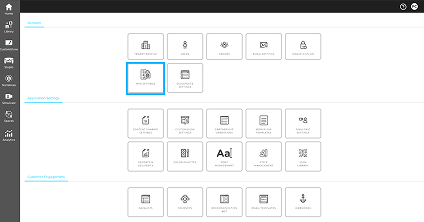
- 2.On the Account tab, click MFA Settings.
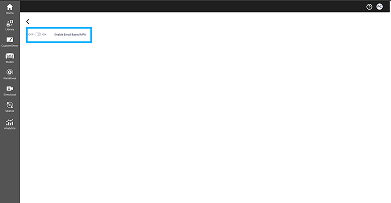
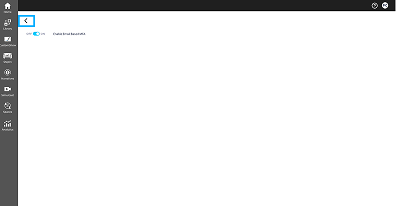
- 3. Locate the Enable Email Based MFA toggle to view the current MFA status.
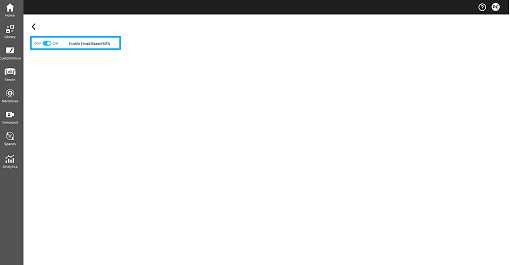
- 4.Turn the toggle On to enable MFA. The setting is saved automatically.
- 5. To disable MFA, return to this page and switch the toggle Off.
- 6.Click Back to return to Admin Settings.
- 7.Sign out, then sign in using your email address and password.
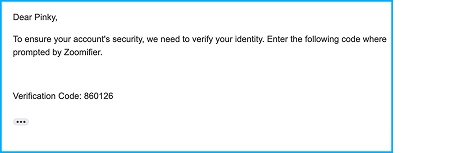
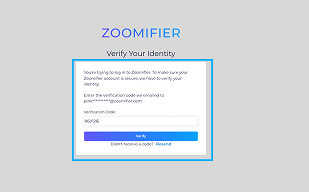
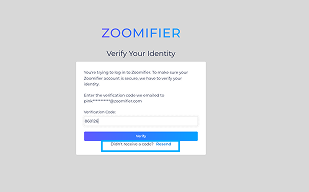
- 8.On the Verify Your Identity page, check your email for the 6-digit verification code. The code expires in 2 minutes.
- 9.Enter the code and click Verify to sign in.
- 10. If the code expires or you don't receive it, click Resend to get a new code. If your session expires, sign in again.
br>
Tips & Notes
- Admin only: Only administrators can access and manage MFA Settings.
- Organization-wide: Enabling or disabling MFA applies to all users who sign in with an email address and password.
- Automatic save: Changes are saved immediately—there is no Save button.
- Supported sign-in methods: Email-based MFA applies only to email/password sign-in. SSO, social login, Salesforce, and desktop app sign-ins do not require a verification code.
- Verification code: The 6-digit code expires after 2 minutes. If it expires, click Resend to receive a new one.
- Didn't receive the code? Check your spam or junk folder, then click Resend if needed.
FAQ
Why don’t I see MFA Settings in Admin Settings?
Your user may not have access to Admin Settings, or your organization may be on a Free (Tier 1) plan. MFA Settings is available on higher plans. Confirm with your primary admin or support.
Who has to enter a verification code after MFA is enabled?
Anyone in your organization who signs in with email and password. Users who sign in another way (for example SSO or social login) are not asked for the email code.
Can I turn MFA on for only some users?
No. MFA Settings is an organization-wide switch. When it is on, it applies to all email/password logins for your account.
What if I enter the wrong code or my code expired?
The code is valid for 2 minutes. If it expires, click Resend to receive a new code. If your session expires, sign in again.
Does turning MFA off take effect immediately?
Yes. Once the toggle is set to OFF, the next email/password login should not require a verification code. Users already mid-verification may still need to finish or start a new login.