
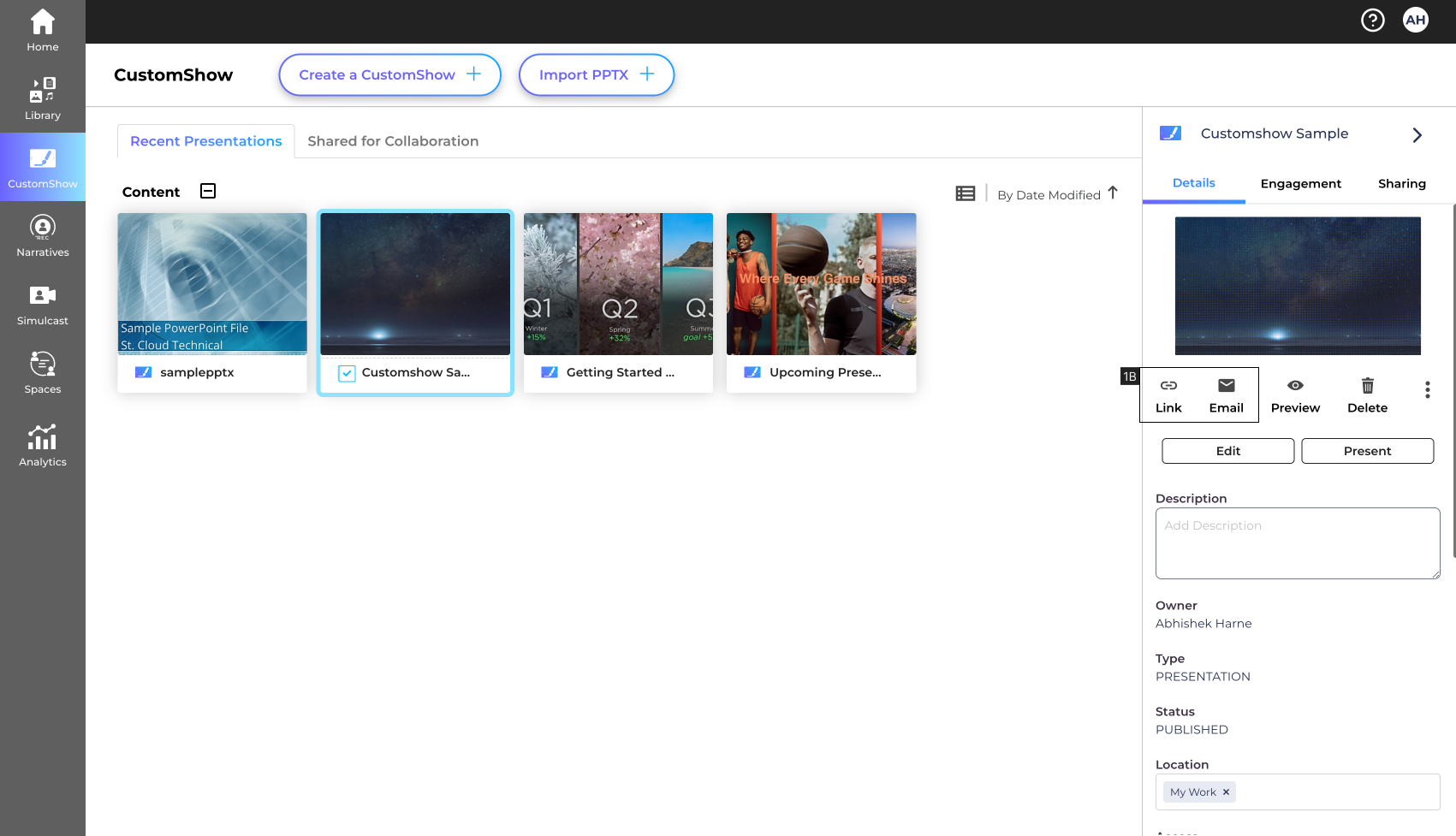
- 1. Click to select the content you want to share, and choose between Link or Email from the right hand side panel.
- 1.B Click ‘Share’ to share the CustomShow and choose between Link or Email.
- Link
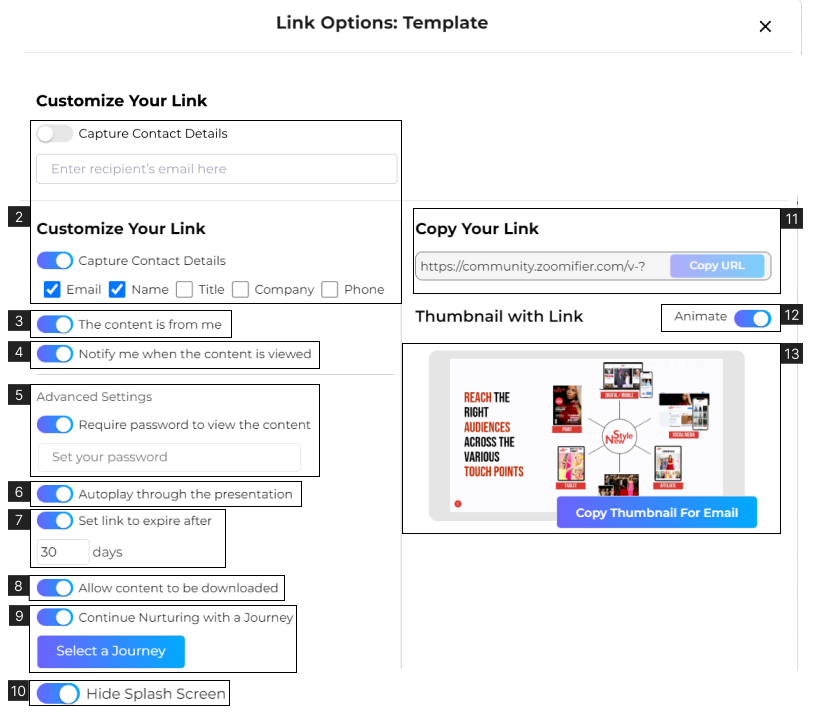
- 2. Toggle for ‘Capture Contact Details’, when kept ‘OFF’ you can enter the recipients’ email ID to track analytics. When turned ‘ON’ the viewer will see a form with which you can capture details such as ‘Email’, ‘Name’, ‘Title’, ‘Company’, and ‘Phone’
- 3. Toggle for ‘Content is from me’, when turned ‘OFF’ you can select the user to send content on behalf of.
- 4. Toggle for ‘Notify me when the content is viewed’, when turned ON’ you’ll receive a Notification email every time your content is viewed.
- 5. Toggle for ‘Require password to view the content’, when turned ‘ON’ you can set a password to view the Content.
- 6. Toggle for ‘Autoplay through presentation’, when turned ‘ON’ the presentation will play without any inputs from the viewer. (only for CustomShow)
- 7. Toggle for ‘Set link to expire after’, when turned ‘ON’ you can set a date when the Content link will expire.
- 8. Toggle for ‘Allow Content to be Downloaded’, when turned ‘ON’ the Content can be downloaded by the viewer.
- 9. Toggle for ‘Continue Nurturing with a Journey’, when turned ‘ON’ you can automate recommendations for relevant content to the viewer. (Only for Enterprise users).
- 10. Toggle for ‘Hide Splash Screen’, when turned ‘ON’ the Content will open without a splash screen (Screen that appears before the presentation showcasing thumbnail and description).
- 11. Link box to copy Content Link for Sharing.
- 12. Toggle for ‘Animate’, when turned ‘ON’ the Thumbnail with Link will be animated.
- 13. Window to copy the Thumbnail with Link for Sharing. (Only applicable for sharing on Email. Directly copy the Thumbnail and paste it into the email)
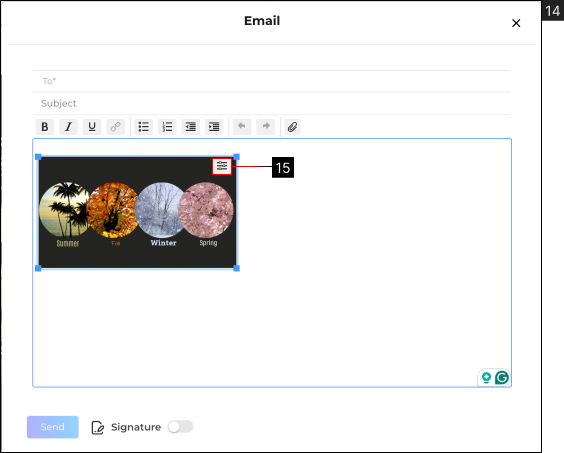
- 14. Share the presentation directly via email.
- 15. When you select the thumbnail in the email, there is a settings icon which lets you configure the link settings in the email.
On Landing Page
Only in the CustomShow editor
Basic Settings
Advanced Settings
Email
Note:
- Hide splash screen #10 is only available when Capture Contact details (#1) and Require password to view the content (#5) both are turned ‘OFF’.