 CustomShow Help & Resources
Playback Option
Media (Video & Audio)
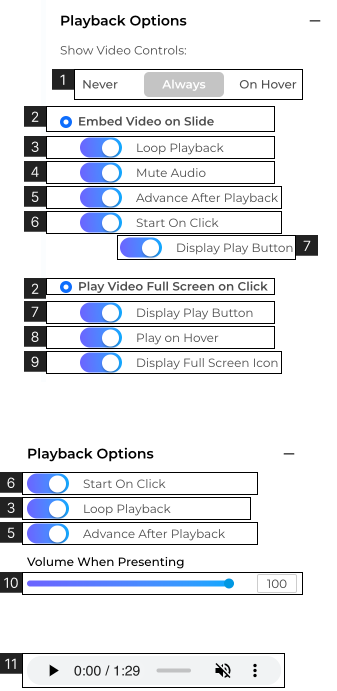
- 1. Define to show video controls. Choose from Never, Always, or On Hover. (Only for Video).
- – When set to ‘Never’ the video controls will not be shown.
- – When set to ‘Always’ the video controls will be shown.
- – When set to ‘On Hover’ the video control will be shown when the cursor hovers on the video./li>
- 2. Choose ‘Embed Video on Slide’ or ‘Play Video Full Screen on Click’.
- 3. Loop Playback toggle, when turned ‘ON’ the media will play on Loop.
- 4. Mute toggle, when turned ‘ON’ the video will play on Mute. (Only for embedded video).
- 5. Advance after playback toggle, when turned ‘ON’ the presentation will advance to the next slide after the media ends.
- 6. Start On Click toggle, when turned ‘ON’ the media will play on click.
- 7. Display Play Button toggle, when turned ‘ON’ it will show the play button on the video.
- 8. Play on the Hover toggle, when turned ‘ON’ the video will play when the cursor hovers over the video.
- 9. Display Full Screen Icon toggle, when turned ‘ON’ grants the user the ability to watch the video in full screen of their device.
- 10. View and adjust the volume of the audio. Use the slider or enter a value to set the volume (in %). (Only for Audio files)
- 10. Media controls to preview the audio in the editor. (Only for Audio files)