- The Media Fill feature allows you to use images within a shape or background of a Slide. This helps seamlessly blends media with your layout.
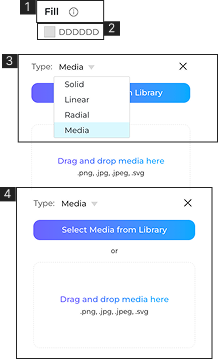
- 1. In the right panel, navigate to the Fill section and open the accordion.
- 2. Click on the Color Picker.
- 3. A dropdown menu will appear; in this dropdown, click on the Media option.
- 4. When selecting the Media option, the system will open a media fill modal.
- 5. The user can select an image from the library or drag and drop an image into the media fill modal. (we don’t support video)
- 6. Select an image from the library by clicking on ‘Select media from the library’.
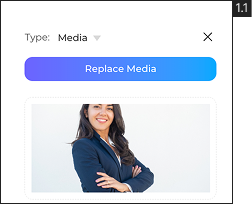
- How to Replace the Media in Media Fill?
- 1.1. Drag and drop an image into the drag-and-drop zone, then click on the ‘Replace Media’ button to replace the previously dropped image.
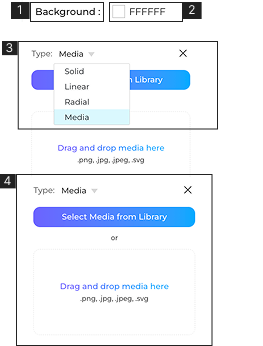
- 1. Go to the Background section.
- 2. Click on the Color Picker.
- 3. A dropdown menu will appear; in this dropdown, click on the Media option.
- 4. When the Media option is selected, the system will open a media fill modal.
- 5. The user can select an image from the library or drag and drop an image into the media fill modal (we don’t support video as a slide background)
- 6. Select an image from the library by clicking on ‘Select media from the library’.
For Shape
For Slide Background