
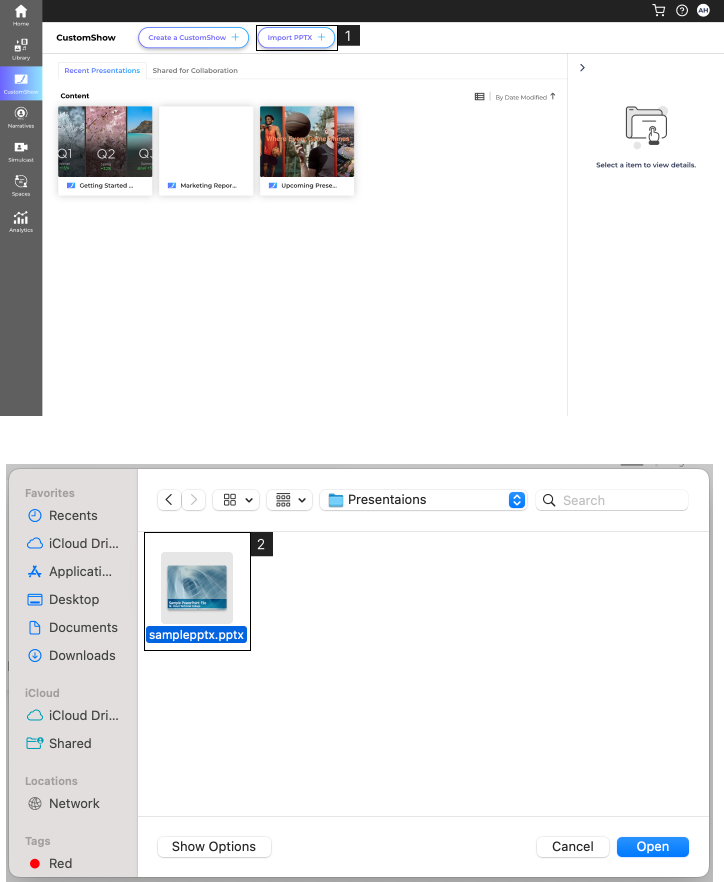
- You can convert your existing PowerPoint (PPTX) presentation to a CustomShow. Follow the steps below to import your PowerPoint in, and automatically convert it. You can always export a PowerPoint out of CustomShow.
- Before Importing your PowerPoint – These steps will help ensure an accurate conversion of your presentation.
- If you are using custom fonts, upload those fonts to CustomShow before you import the PowerPoint. Fonts that are not available in your CustomShow editor will default to Arial.
- Using the Design Tab in PowerPoint, set your presentation to a 16:9 aspect ratio.
- Steps to Import:
- 1. Select ‘Import PPTX’ on the CustomShow Landing Page.
- 2. Navigate to the file location on your device and click ‘Open’.
- – You can track the uploading status with the progress bar./li>
- – Once the PPTX is uploaded, the conversion will begin. The conversion process will take anywhere from a few seconds to a few minutes depending on the size of the PowerPoint and the number of elements on each slide.
- – You will receive an email notification once the PowerPoint presentation is done converting.
- – Once successfully imported and converted, the presentation will be available in the CustomShow landing page.
- – You can double-click on it to preview it, or select it and click ‘Edit’ to open it up in the editor.
Note:
- You may need to adjust the elements on the slide after the conversion.
- All images will be uploaded to your media folder. You can find them in a subfolder with the name of your PowerPoint.