
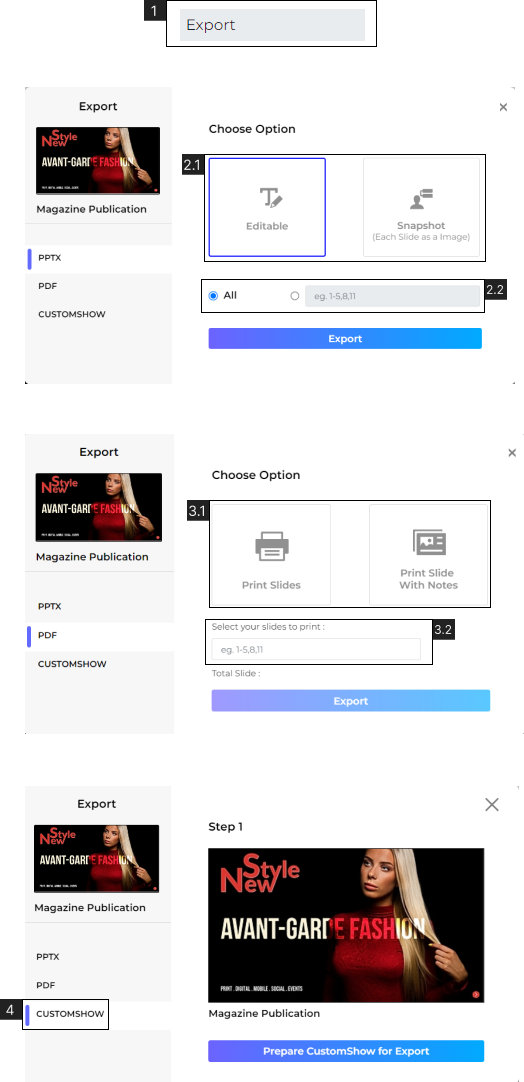
- Export your presentation on a desktop.
- 1. Navigate to File > Export (#1)
- 2. Choose to export the Presentation as PPTX
- 2.1. Export Presentation as ‘Editable’ or ‘Snapshot’ (Each slide as an image)
- 2.2. Choose from exporting ‘ALL’ slides or select slides in the presentation.
- 3. Choose to export Presentation as ‘PDF’
- 3.1. Export only ‘Slides’ or Export Slides with ‘Speaker Notes’. Learn More about Speaker Notes.
- 3.2. Select slides to export from the presentation.
- 4. Export presentation as CustomShow.
Note:
- Presentations exported as CustomShow can only be opened in Zoomifier. To upload your CustomShow to another account, simply drag and drop it in the Digital Library or CustomShow landing page.
- Ensure that any custom fonts used in your presentation are installed on the device you’ll be using to access it. You can export fonts from CustomShow using the Font Manager.