 CustomShow Help & Resources
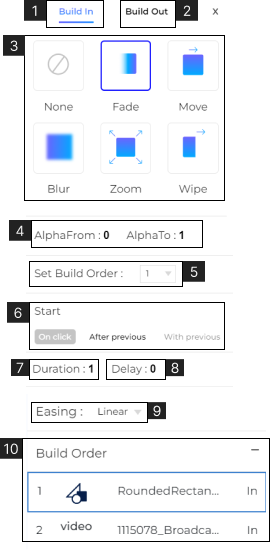
- Builds are transition animations that can be added to elements when they enter (Build in) and exit (Build out) on the slide.
- When you select an element on the slide you can find the build option in the toolbar.
- 1. Click ‘Build in’ to set the entry animation for an element on the slide.
- 2. Click ‘Build out’ to set the exit animation for an element on the slide.
- 3. Choose the type of animation for the element. Choose from Fade, Move, Blur, Zoom, or Wipe. To remove build from any element choose ‘None’.
- 4. View or set transition transparency. The value can be defined from 0 to 1. (Only for Fade Build).
- 5. View or set the order in which the builds will execute on the slide.
- 6. Set when the build will execute. Choose ‘On Click’, ‘After Previous’, or ‘With Previous’
- – When set to ‘On Click’ the build will execute when the user clicks on the slide.
- – When set to ‘After Previous’ the build will execute automatically after the previous build’s execution.
- – When set to ‘With Previous’ the build will execute automatically with the build of the previous element.
- 7. View or set the Duration of the build. (in seconds).
- 8. View or set the Delay in execution of the build. (in seconds).
- 9. View or define the Easing of the builds. Choose between Liner, Bounce, Exponential, or Sine.
- 10. View and Adjust the Build Order for the elements on the slide with builds. Drag and drop the elements in the order you want them to appear on the slide.